Description:
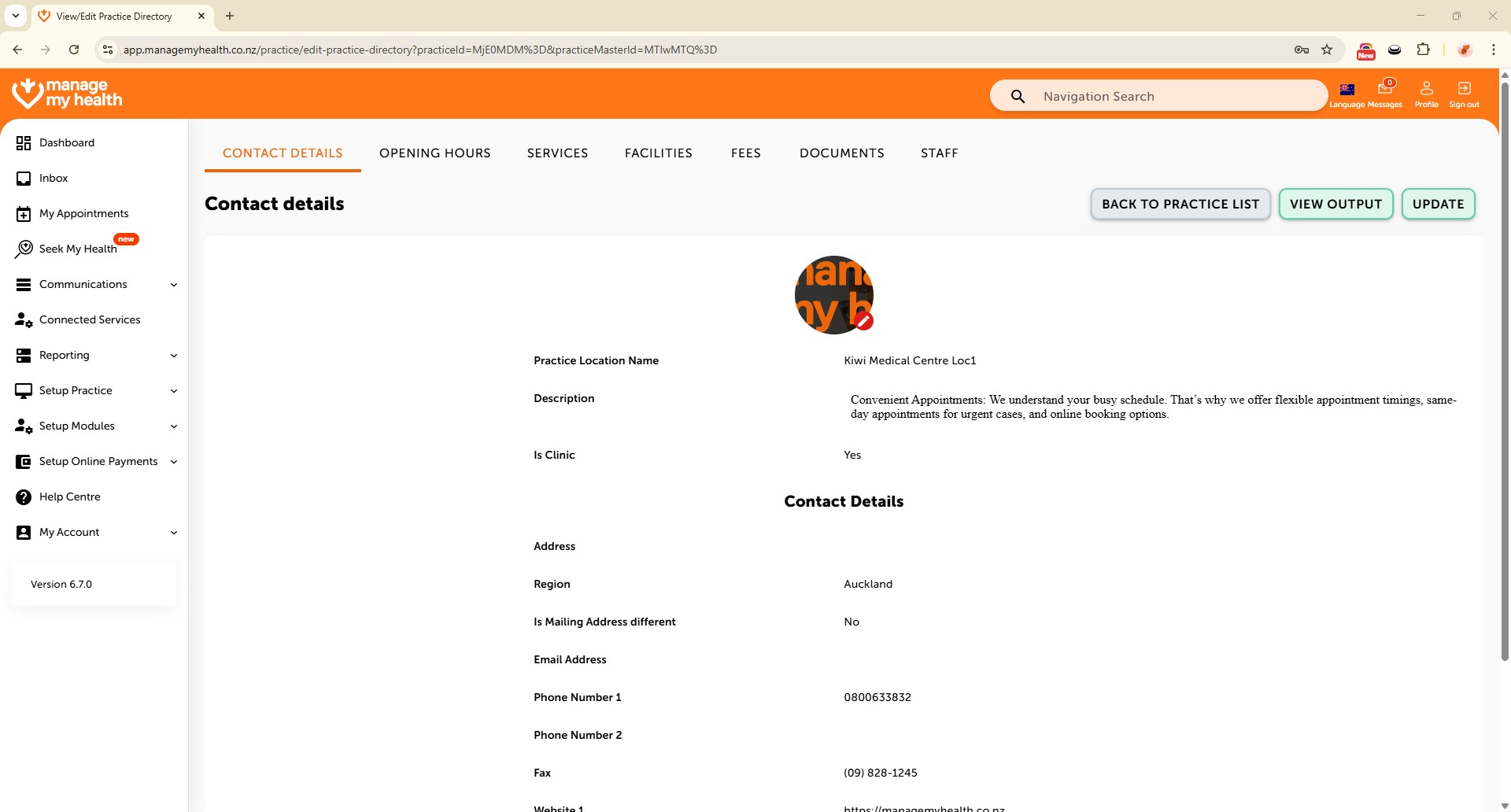
This help guide explains how to update practice contact details in ManageMyHealth. It’s useful when you need to revise your practice’s address, email, or other directory information. You’ll learn how to edit location details, update service descriptions, and adjust mailing and physical address settings. By following these steps, you can ensure patients always see accurate and up-to-date contact details for your practice.
Video Demo:
Steps:
- In the left sidebar, click “Setup Practice” to open practice settings.
- Select “Practice Directory” to view and manage your practice locations and details.
- Click the Add icon to expand the Practice section.
- Next to the relevant practice location, click “EDIT LOCATION INFO” to begin updating contact details.
- Click the “UPDATE” button to enable editing.
- Enter or revise the description to accurately reflect your practice’s services and values.
- Update the physical address by editing the Street Number, Street Name, and Region fields.
- If the mailing address is the same as the physical address, select No under “Is Mailing Address Different” to skip duplicate entry.
- Update the Email Address and any other necessary contact fields.
- Click “UPDATE” to save all changes.