Description:
This help guide explains how to update your practice’s opening hours in ManageMyHealth. It’s useful when you need to adjust clinic schedules to reflect current operating times. You’ll learn how to access the opening hours tab, edit start and finish times, and mark days as closed when needed. By following these steps, you can ensure patients always see the correct opening hours for your practice.
Video Demo:
Steps:
- Select “Setup Practice” in the left sidebar to open Practice settings.
- Click on “Practice Directory” in the sidebar to view and manage your practice locations and details.
- Expand the Practice section by clicking the Add icon.
- Select “EDIT LOCATION INFO” next to the relevant practice location to begin updating its contact details.
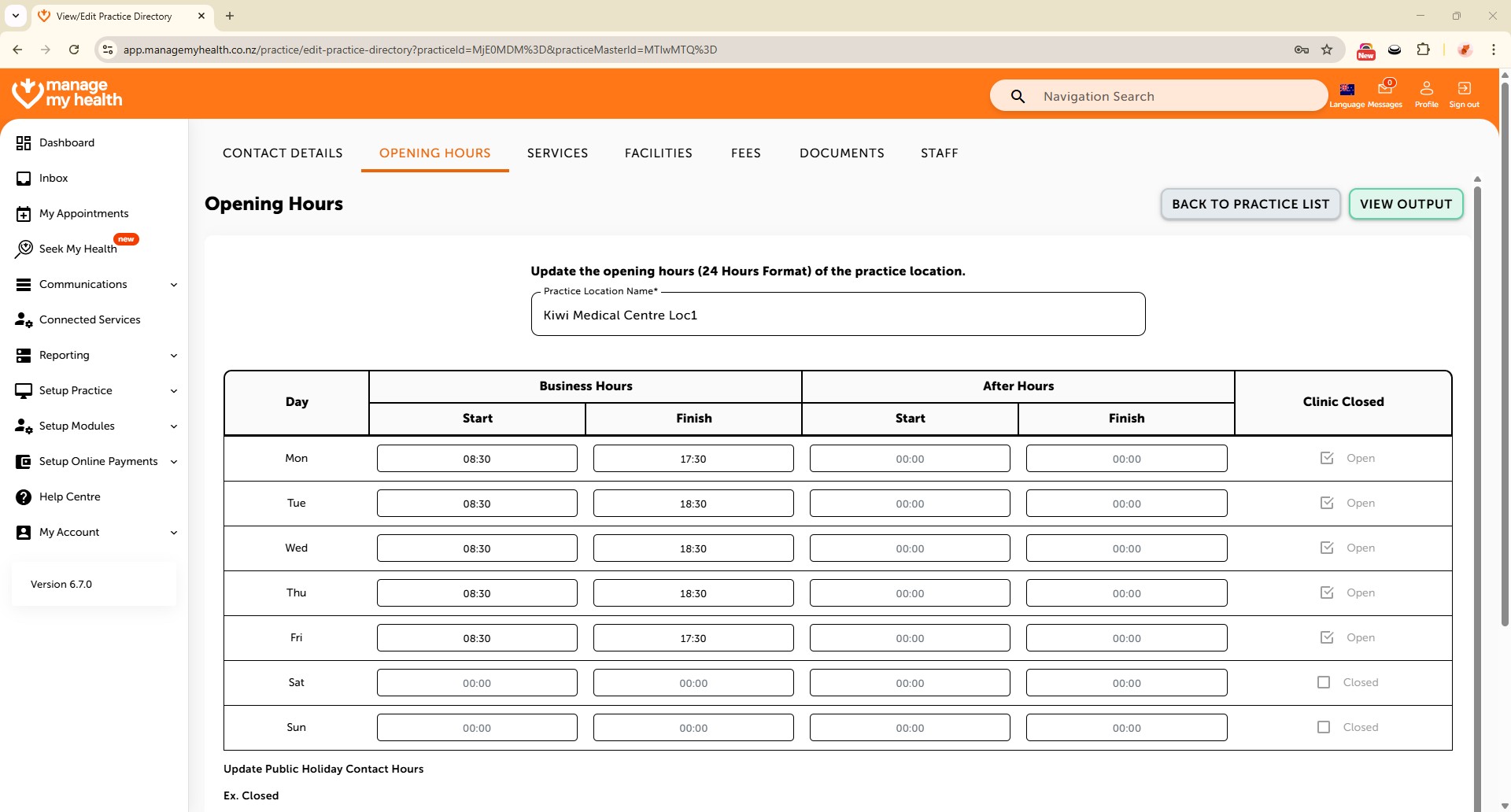
- Click on the “Opening Hours” tab to view or modify your clinic schedule.
- Click on “Edit“.
- Update the start and finish time for the chosen day to set when your clinic opens for business.
- Untick the box if your clinic does not operate on that day.
- Click “Save” to apply changes made to your Practice’s opening hours.