Description:
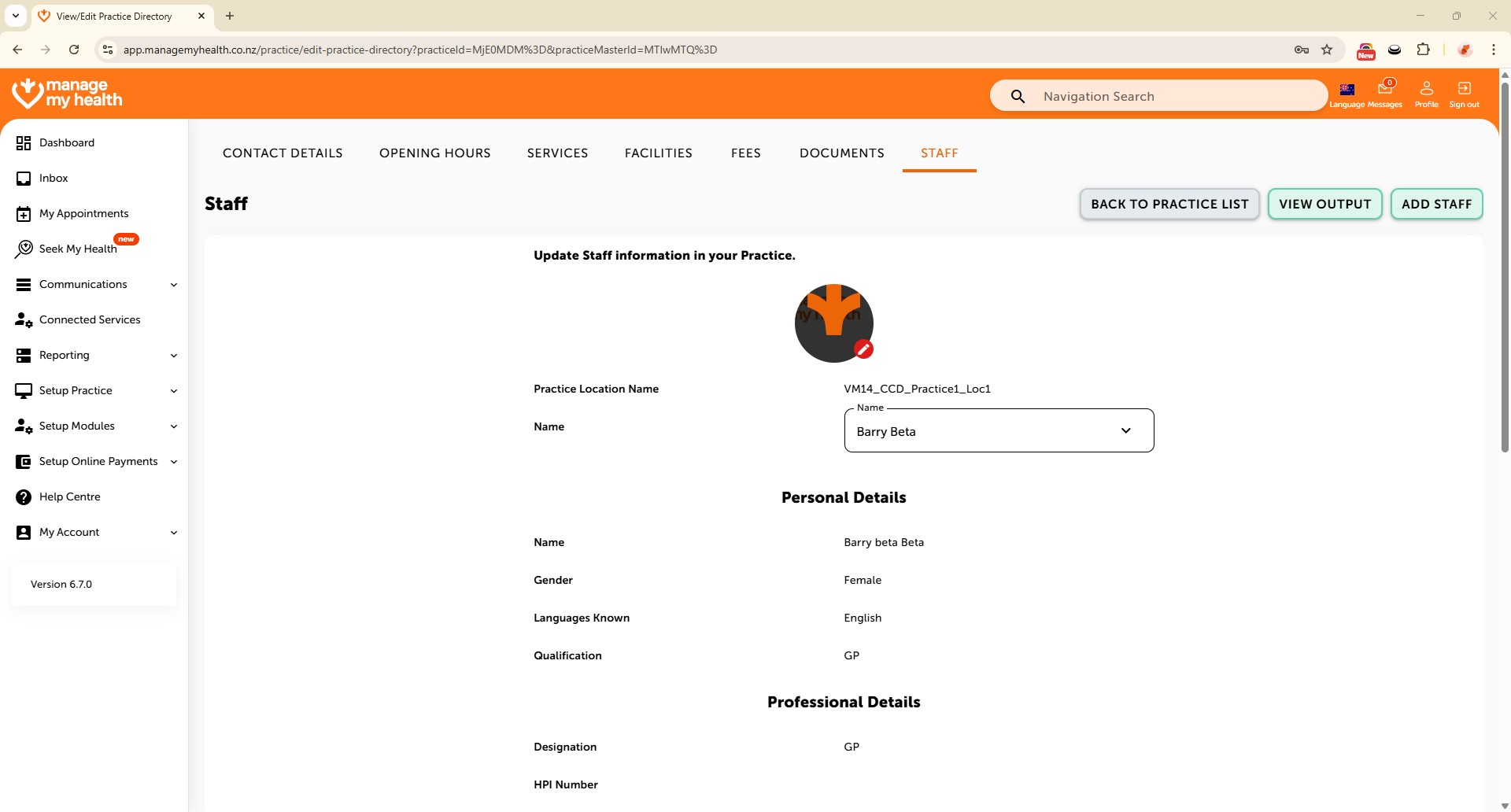
This help guide explains how to add and manage staff in ManageMyHealth. It’s useful when you want patients to see up-to-date information about your team. You’ll learn how to add new staff profiles with details such as designation, registration numbers, and clinical interests, as well as update existing staff records. By following these steps, you can ensure staff details are accurate and visible to patients through Easy Booking.
Video Demo:
Steps:
- Go to Setup Practice and select Practice Directory.
- Expand the relevant practice entry and click EDIT LOCATION INFO for the desired location.
- Navigate to the STAFF tab to view or manage existing staff.
- Click Add Staff to add a new team member.
- Enter the required staff details:
First Name, Last Name, Gender, Languages Spoken, Designation,
Provider Registration Number, Vocational Registration (if applicable),
Clinical Interests, About Me,
Work Locations, and Phone Number. - Click ADD STAFF to save the staff member. They will now appear in the list and be visible on Easy Booking.
- To update existing staff, select the staff member, click Edit, and make the necessary changes.
- Click Update to save the changes.