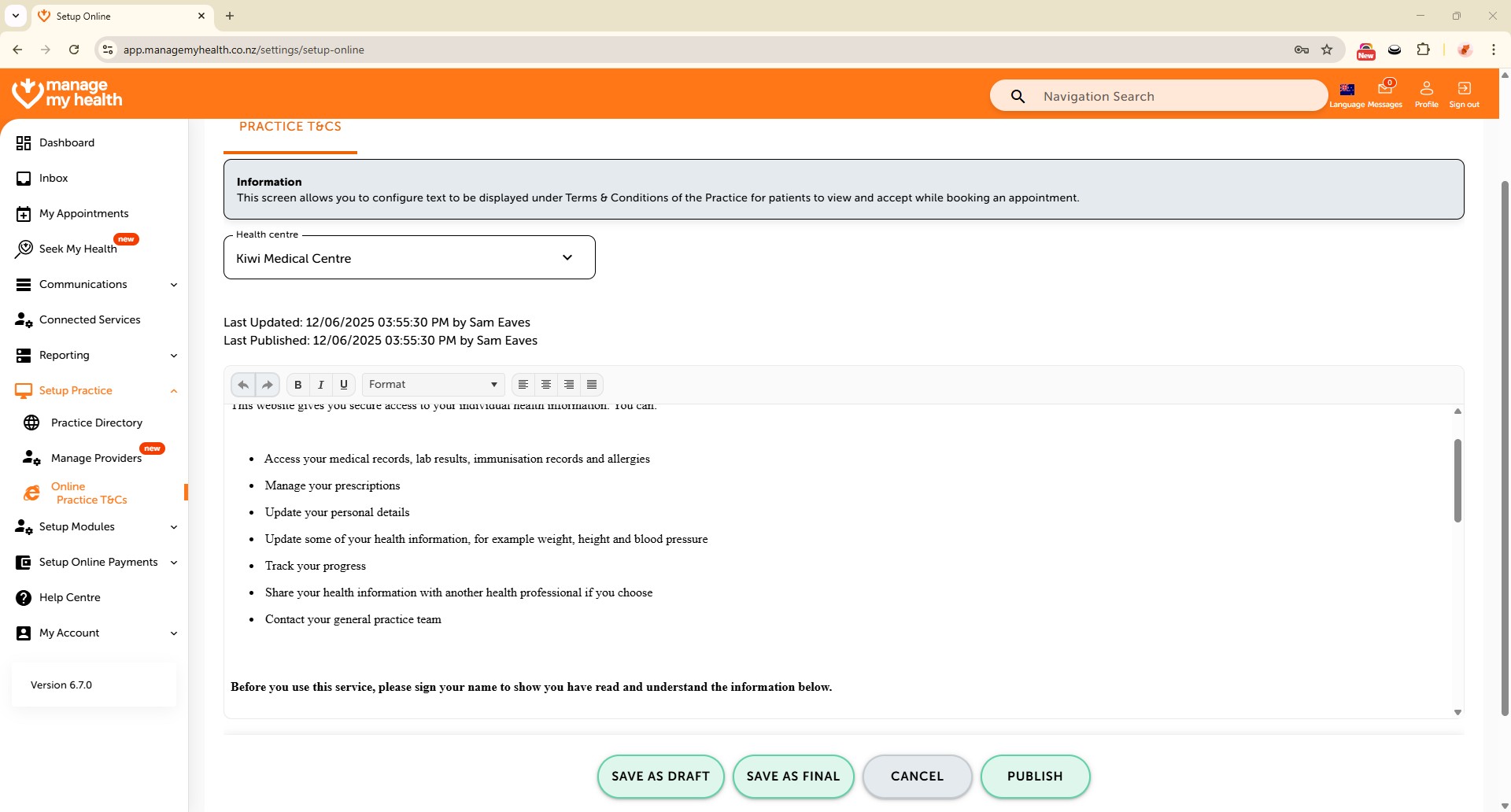
Description:
This help guide explains how to configure your practice’s online terms and conditions in ManageMyHealth. It’s useful when you want patients to view and accept your policies before booking or using online services. You’ll learn how to access the practice directory, edit the location information, and add or update your terms and conditions. By following these steps, you can ensure patients are aware of and agree to your practice’s policies online.
Video Demo:
Steps:
- Log in to your account.
- From the main menu, select “Setup Practice”.
- Go to “Online Practice T&Cs” to manage the terms displayed to patients online.
- Click “Edit” to modify your practice Terms and Conditions.
- Update the content as needed to ensure the information is current and accurate.
- Once your updates are complete, click “SAVE AS FINAL” to prepare the terms for publication.
- Select “PUBLISH” to make the new terms available online.
- Confirm the publication by clicking “YES”.
- The updated Terms and Conditions have been successfully saved and published.