Description:
This help guide explains how to add an online fee structure and manage provider roles in ManageMyHealth. It’s useful when you want to ensure patients see accurate charges and that providers are correctly assigned. You’ll learn how to set fees for registered and casual patients based on age, appointment type, and subsidies, as well as update provider roles. By following these steps, you can maintain clear fee structures and accurate provider details in your practice directory.
Video Demo:
Steps:
- From the “Setup Practice” menu, click “Practice Directory”, then expand the practice section and click “EDIT LOCATION INFO” next to the relevant location.
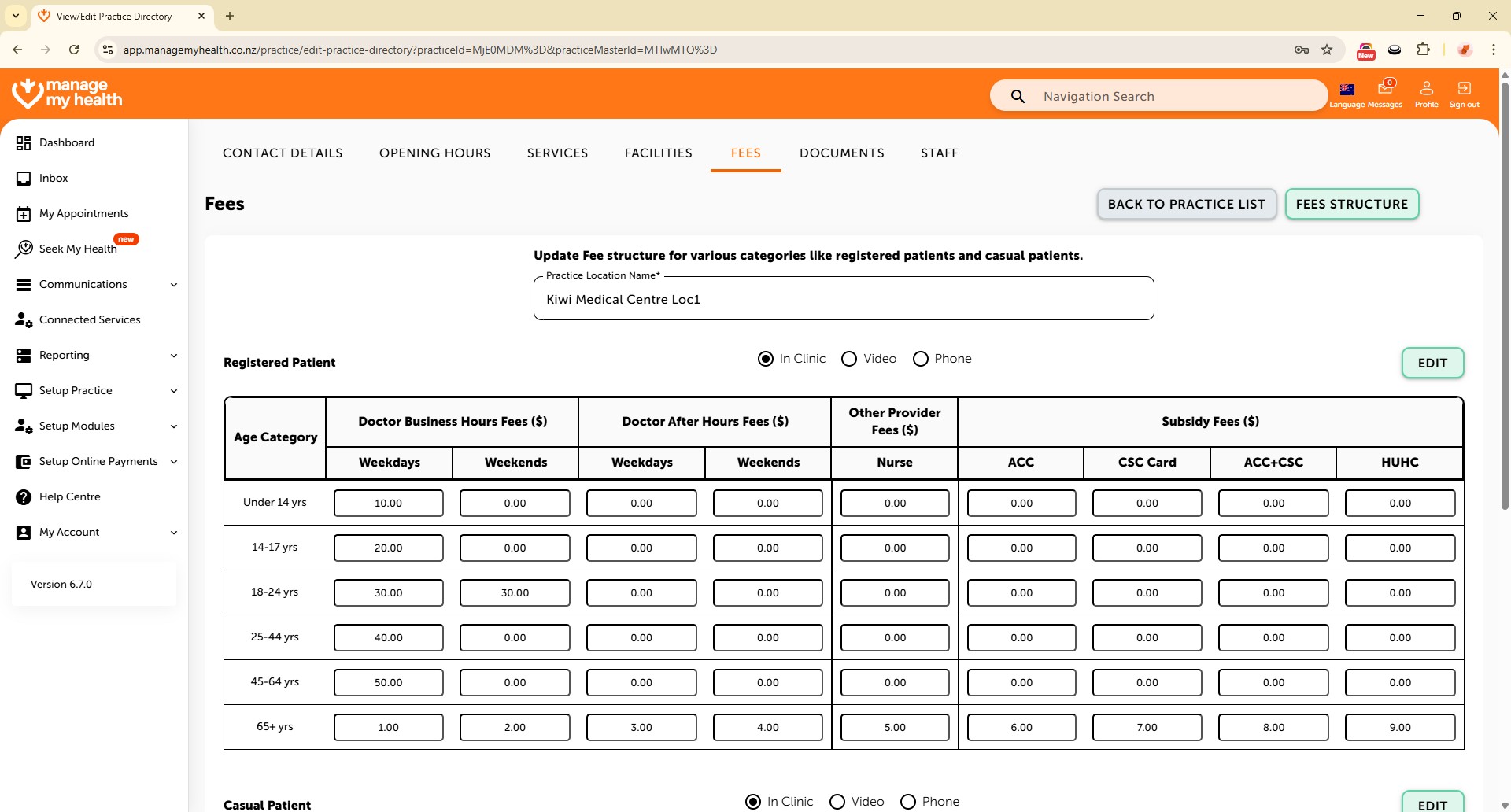
- Navigate to the “Fees” tab and click “ADD ONLINE FEES STRUCTURE” to begin configuration.
- Under Registered Patients, select the appropriate appointment type (e.g., In Clinic) by clicking the radio button, then click “EDIT”.
- Enter fees based on age group, business hours, provider type, and any applicable subsidies.
- Repeat the same steps under the Casual Patients section by clicking “EDIT” and entering their fee details.
- To manage provider roles, go to “Manage Providers” from the “Setup Practice” menu.
- Click the Edit icon next to the relevant provider, select the appropriate provider type (e.g., Nurse), then click “UPDATE” to save the changes.
- Once all fee details and provider roles are updated, click “Save” to apply and confirm the changes.