Description:
This help guide explains how to update your practice’s facilities and services in ManageMyHealth. It’s useful when you want patients to see accurate and up-to-date information about what your practice offers. You’ll learn how to add new services, adjust display order, provide descriptions, and update available facilities. By following these steps, you can ensure patients have clear visibility of your practice’s capabilities and offerings.
Video Demo:
Steps:
- In the left sidebar, select “Setup Practice” to access the Practice settings.
- Click on “Practice Directory” in the sidebar to view and manage your practice locations and their details.
- Expand the Practice section by clicking the Add icon.
- Next to the relevant practice location, select “EDIT LOCATION INFO” to begin updating its contact details.
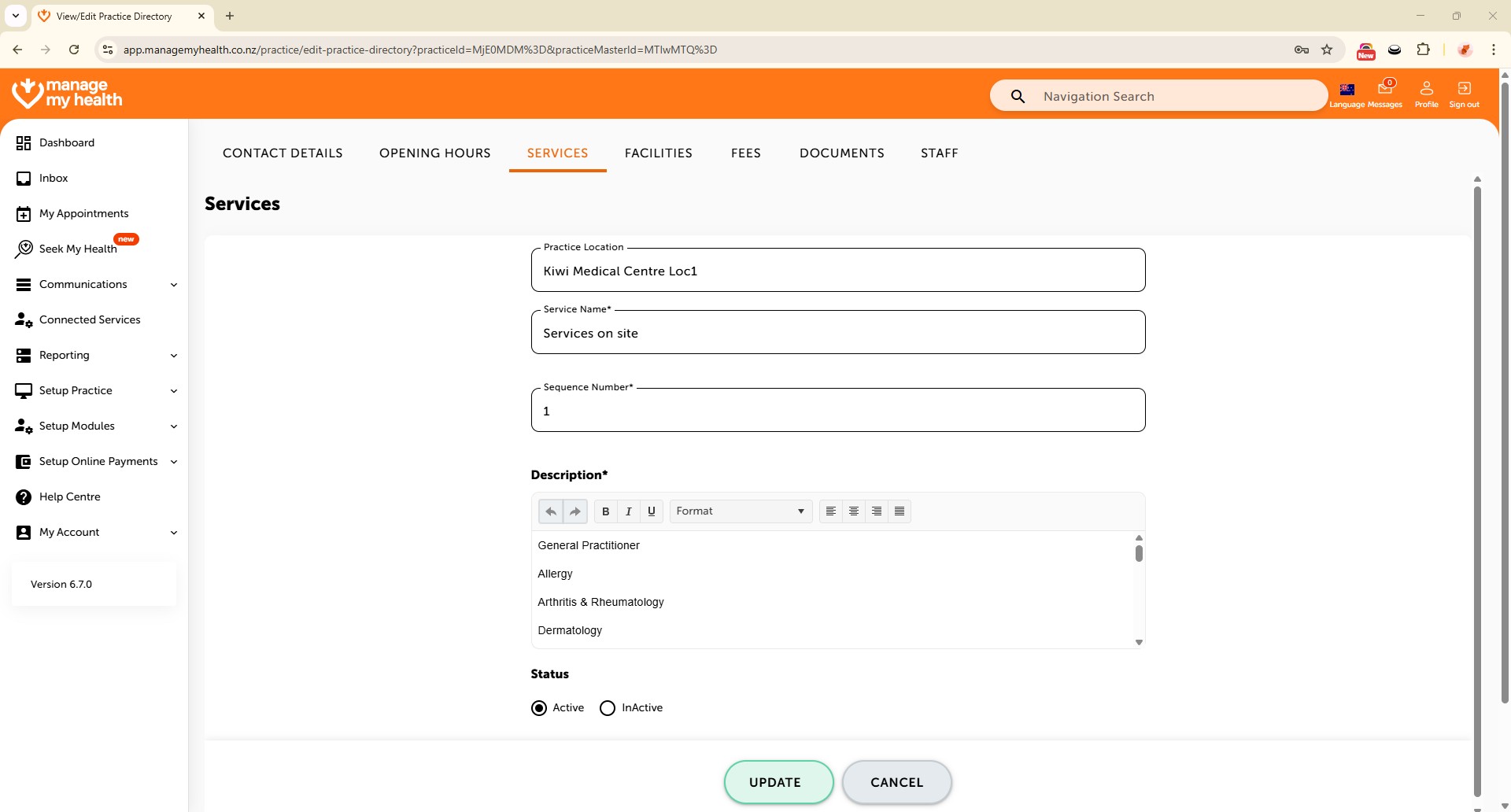
- To view or modify the list of services offered at this practice location, click on the “SERVICES” tab.
- Click the “Add Service” button to add a new service.
- In the Service Name field, enter the name of the new service.
- Specify the Sequence Number to control the display order of the service in your list.
- Use the description box to provide details about the service and click “Save”.
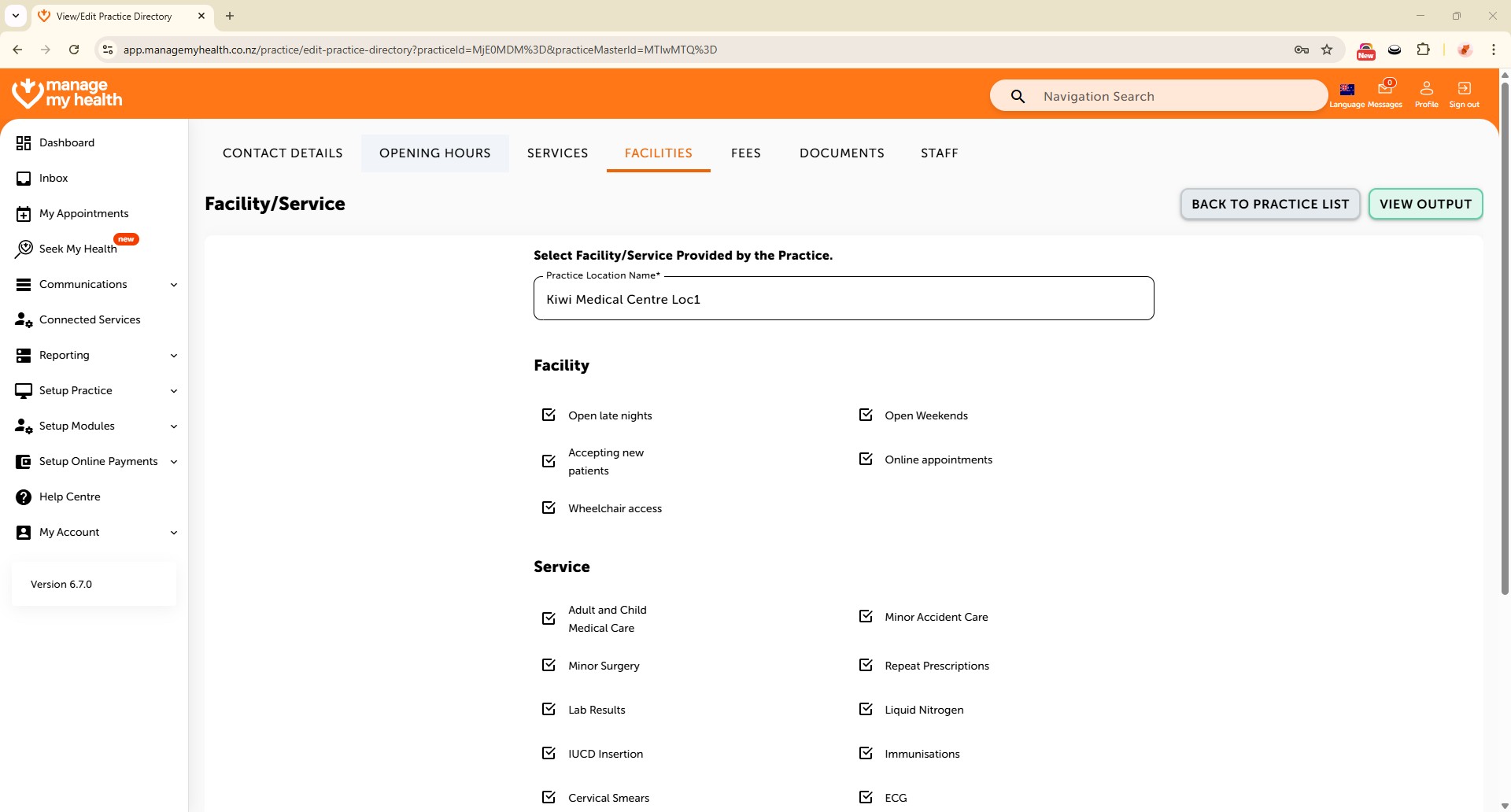
- To manage facility-related information, navigate to the Facilities tab.
- Tick the facilities and services offered by the practice, then click “UPDATE” to save the changes.