Description:
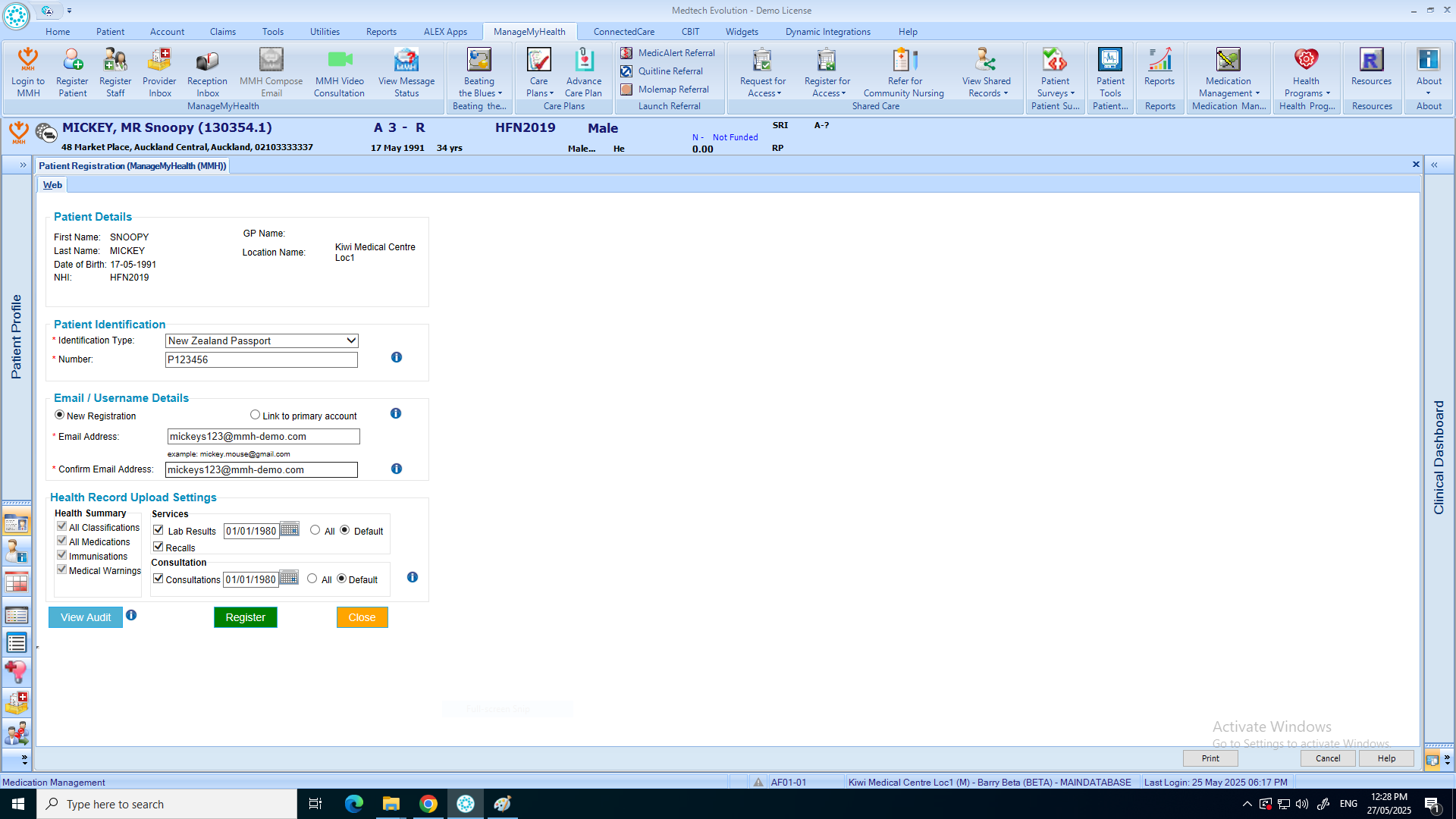
This help guide explains how to register a patient for ManageMyHealth. It’s useful when enrolling new patients so they can access the portal. You’ll learn how to select the patient in the PMS, choose Register Patient from the ManageMyHealth menu, enter their identification details and email, and complete the registration. By following these steps, you can confirm the setup and ensure the patient receives instructions by email to access their account.
Video Demo:
Steps:
- Place the patient on the pallet.
- From the top menu, click on “Manage My Health.”
- Select “Register Patient.”
- Choose the patient’s Identification Type from the dropdown menu, then enter the Identification Number.
- Enter the patient’s email address, then click “Register.”
- Click “OK” to confirm the registration.
- The patient has been successfully registered for Manage My Health. Instructions have been sent to their email.