Description:
This help guide explains how to set up online payments for a medical centre in ManageMyHealth. It’s useful when you want to enable patients to pay online for appointments and repeat prescriptions. You’ll learn how to apply for or connect a Windcave account, enter payment credentials, and activate online payments. By following these steps, you can also add terms and conditions and apply the setup across multiple locations.
Video Demo:
Steps:
- Go to Setup Online Payments in the sidebar and select Payments.
- If you don’t have a Windcave account, fill out the application form and contact [email protected].
- If you have a Windcave account, click NEXT to continue.
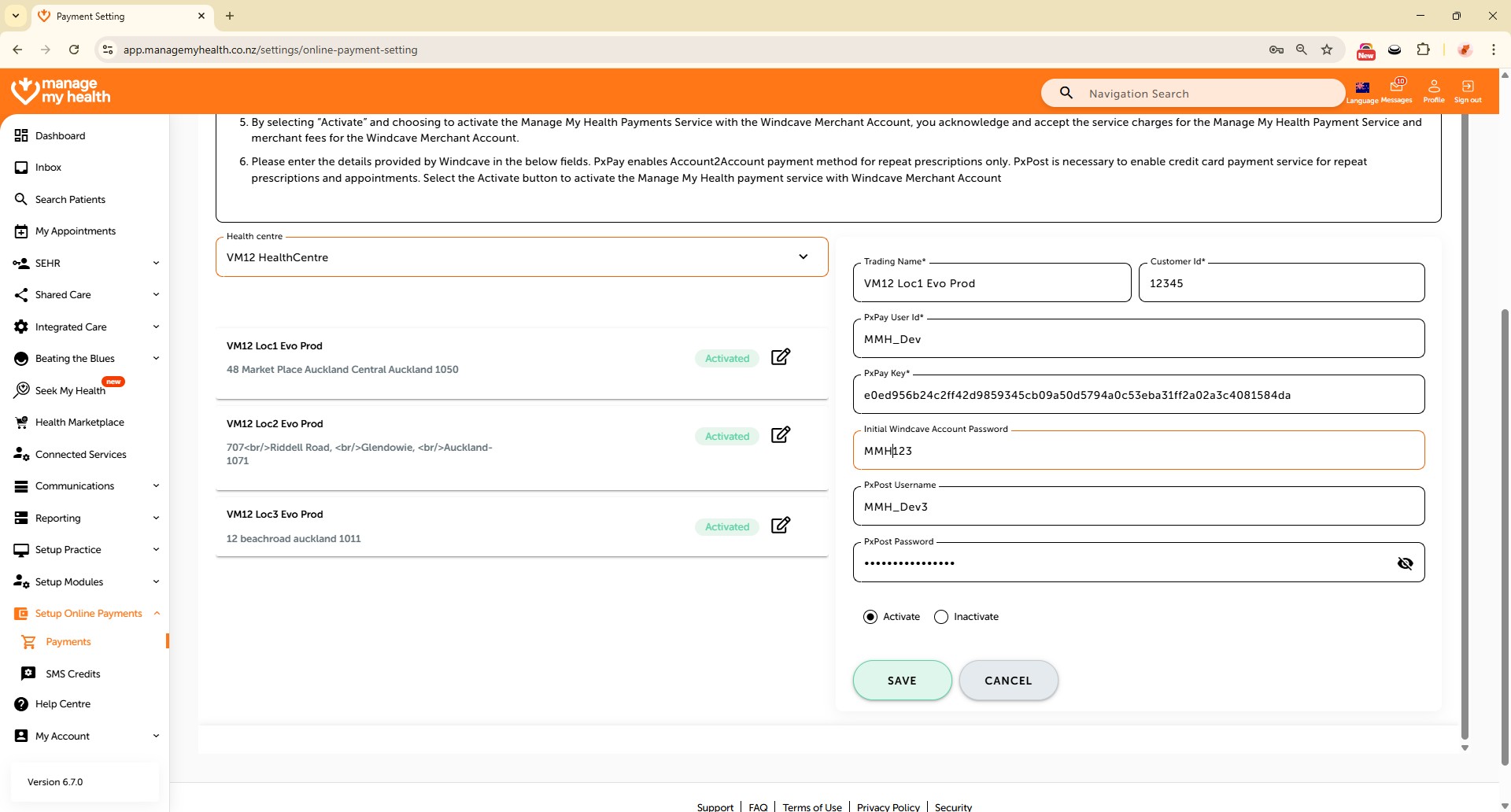
- Enter the following Windcave details:
Trading Name and Customer ID
PxPay User ID, PxPay Key, and Initial Password
PxPost Username and PxPost Password - Click Activate, then click Save.
- For multiple locations, use Copy from other location, then click Activate and Save again.
- Go to Online Payment Settings, click Edit,
- Turn on online payments for appointments and Repeat Prescriptions
- Add Terms and Conditions
- Click Save to apply changes.