Description:
This help guide explains how to send group SMS messages to patients in ManageMyHealth. It’s useful when you want to quickly share reminders, alerts, or updates with multiple recipients. You’ll learn how to enable group messaging, filter or import recipients, personalise messages with merge fields, and preview before sending. By following these steps, you can send or schedule SMS messages and confirm delivery for your chosen patients.
Video Demo:
Steps:
- Go to “Communications” and select “Group Message – SMS.” If disabled, continue with the steps below to enable.
- In “Select Module,” click “Edit”, choose “Group Message”, set Enable Group Messaging to Yes, and enter your practice name or signature.
- Click “SAVE” to apply the changes.
- Return to “Group Message – SMS” to start composing your message.
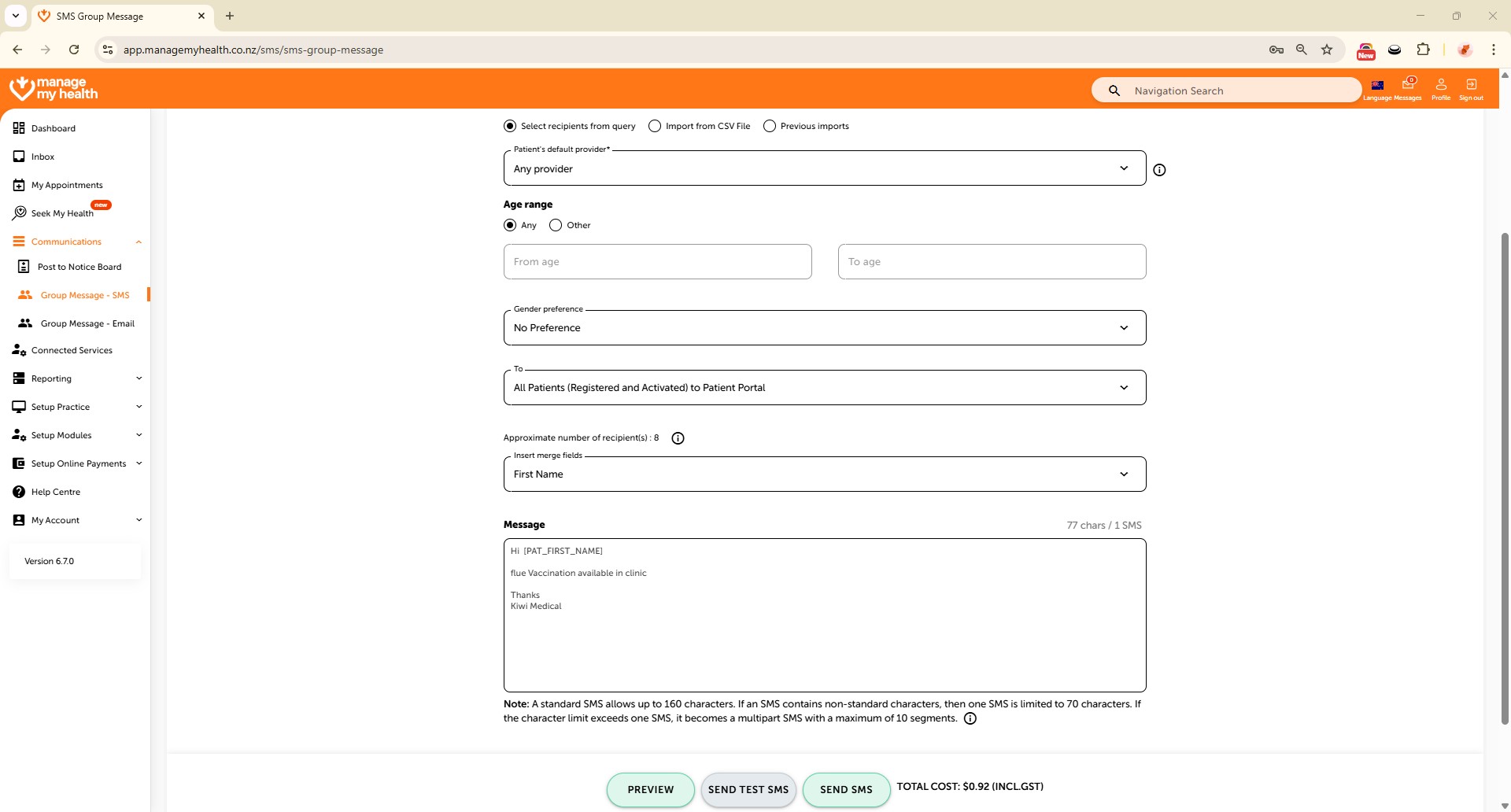
- Import recipients via CSV or filter by provider, age range, and gender.
- Choose recipients from the dropdown and optionally insert a merge field (e.g., First Name) for personalization.
- Enter your SMS message in the text box.
- Click “PREVIEW” to review, then close the preview window.
- (Optional) Click “SEND TEST SMS” to verify the message before sending.
- Click “Send SMS” to send now or schedule for later, then confirm by clicking “OK.”