How to Manage and Action the recall contact list
57 views 0 August 31, 2025
Description:
This help guide explains how to manage and action the recall contact list in ManageMyHealth. It’s useful when you want to send recall reminders to patients and track communication. You’ll learn how to create or edit recall documents, link them to screening terms, and generate patient lists by date range, recall type, group, or code. By following these steps, you can send MMH emails directly to patients and see updates in the Last Contacted field once emails are sent.
Video Demo:
Steps:
- Click the Evolution icon and select Options.
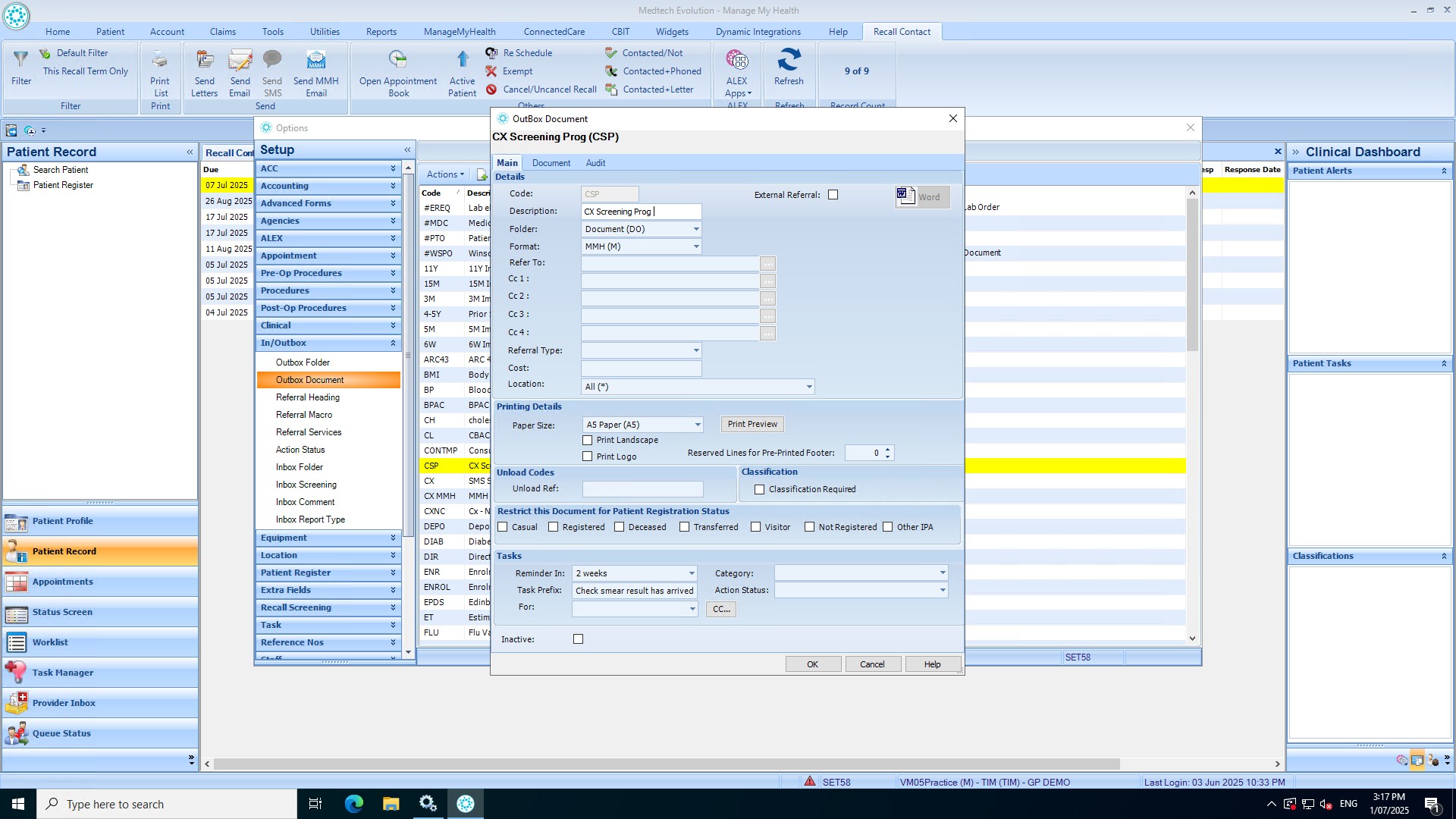
- Navigate to In/Outbox > Outbox Documents, then click Create New Document or edit an existing document.
- Enter the code and description, select Document as the folder and MMH as the format, then add the patient content in the Documents tab and click OK.
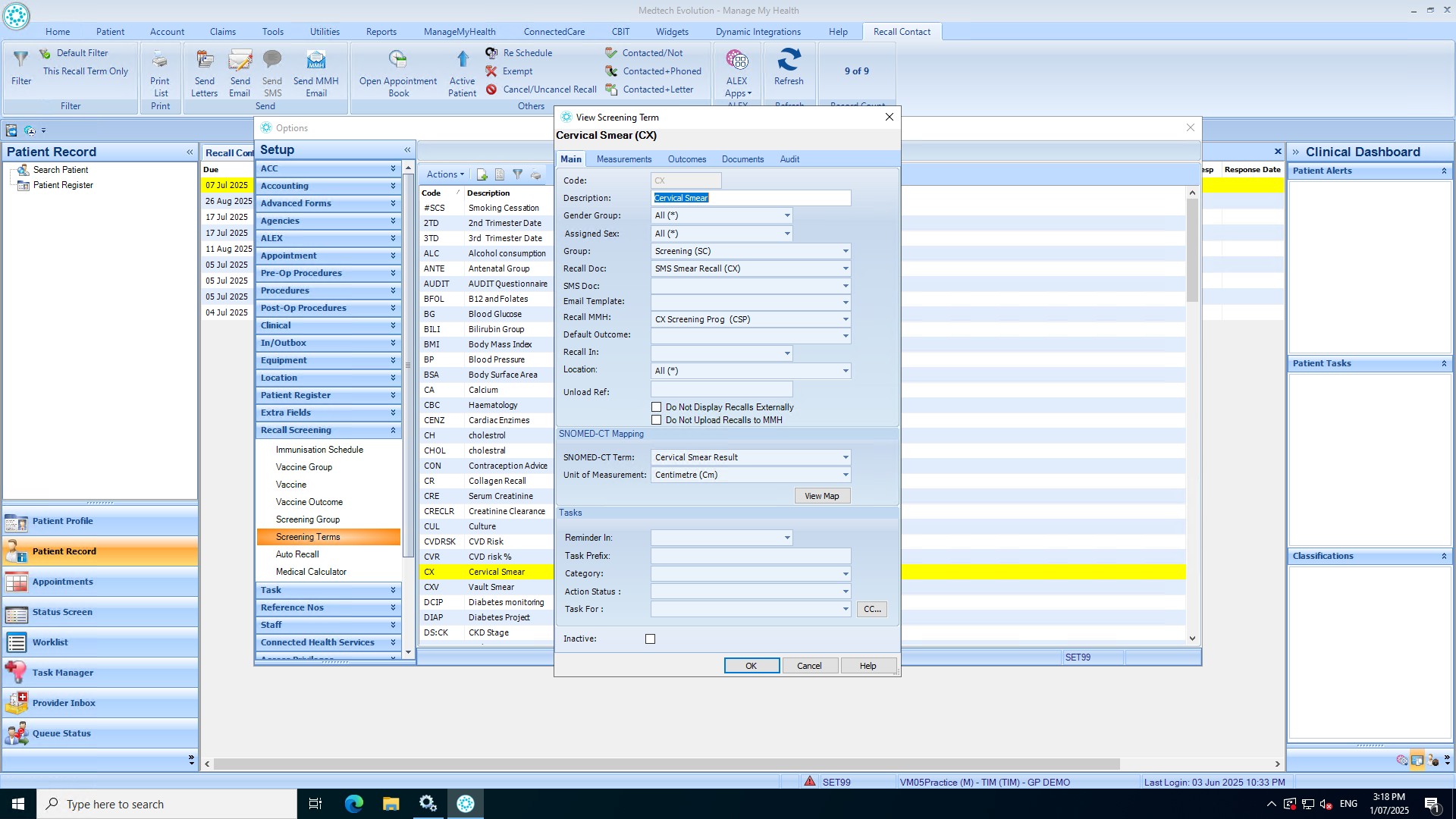
- Go to Recall Screening > Screening Terms, then create a new term or edit an existing one.
- Select the corresponding Recall MMH document from Outbox Documents and click OK.
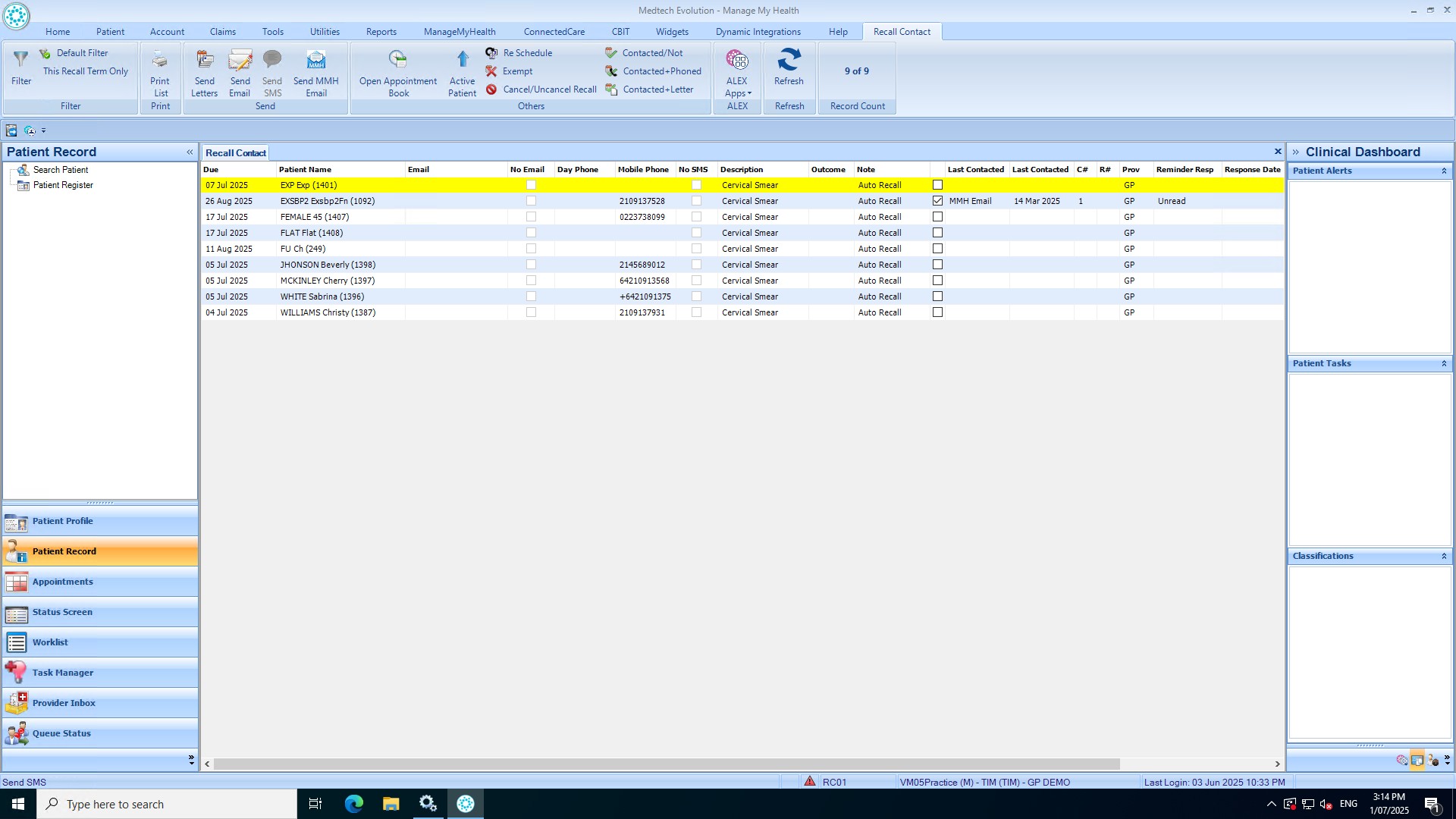
- From the Home ribbon, access Recall Contact, set the date range, and apply filters by recall type, group, and code.
- Review the displayed patient list and click Send MMH Email to send emails.
The system will show a warning if there are issues with patient accounts; once emails are sent, the Last Contacted field updates with “MMH Email” and the email date.