Description:
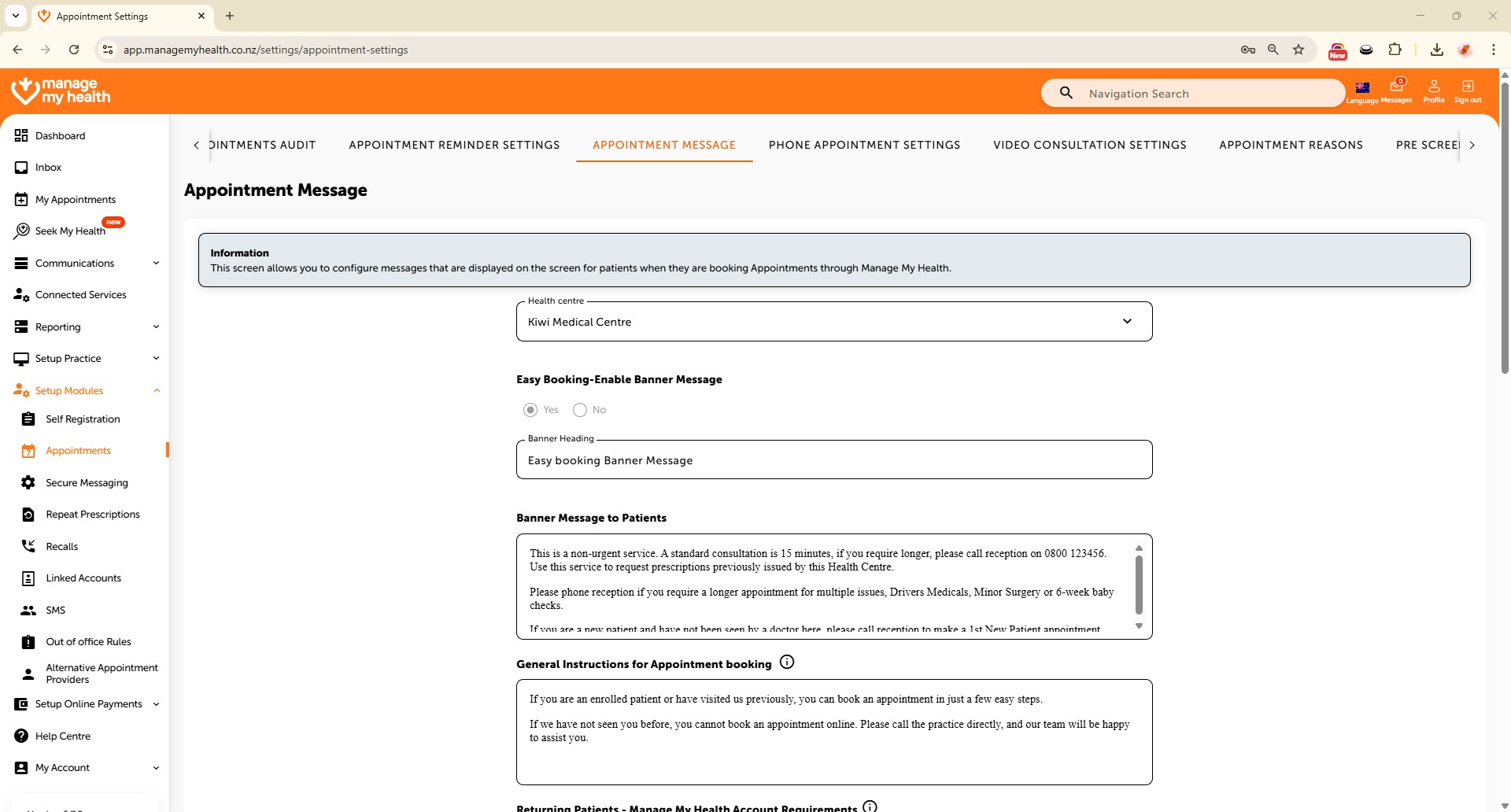
Patient Portal Banner Messages for Appointments are custom notifications displayed at the top of the patient portal to share important updates related to booking or managing appointments. They can be used to inform patients about changes in booking rules, provider availability, upcoming clinics, or special instructions before attending an appointment. This helps improve communication, reduce confusion, and keep patients well-informed.
Video Demo:
Steps:
- Enter your registered email address.
- Type your password to continue the login process.
- Click on the “SIGN IN” button.
- From the sidebar, select Setup Modules.
- Choose “Appointments” in the navigation menu.
- Use the arrow icon to reveal more settings tabs related to appointments.
- Select the “APPOINTMENT MESSAGE” tab to configure the banner message for appointments.
- Scroll down and click the “Edit” button to begin modifying the banner message settings for the patient portal.
- Enable the banner message for Easy Booking feature.
- Update the banner title and message for bookings.
- Enable the banner message for the patient portal (web) and update the booking heading and message.
- Enable the mobile app banner message and update heading and message to ensure patients see the most relevant information when using the app.
- Click “SAVE” to apply all your changes and update the banner messages for your patients.
- Banner message changes are saved successfully.