Description:
This help guide explains how to configure online appointment settings using Rule B in ManageMyHealth. It’s useful when you want patients to book appointments with any provider, but only at their default location. You’ll learn how to adjust booking limits, update payment rules, and manage options such as family bookings, pre-screening, and exclusions. By following these steps, you can maintain clear booking processes while keeping appointments aligned with practice preferences.
Video Demo:
Steps:
- From the sidebar, navigate to “Setup Modules”, then select “Appointments” from the menu.
- Scroll down and click “Edit” to begin modifying your appointment settings.
- Select your Health Centre from the dropdown menu.
- Adjust the “Number of appointments allowed per patient per day” using the dropdown, and enter your Appointment Terms and Conditions for patients to view during booking.
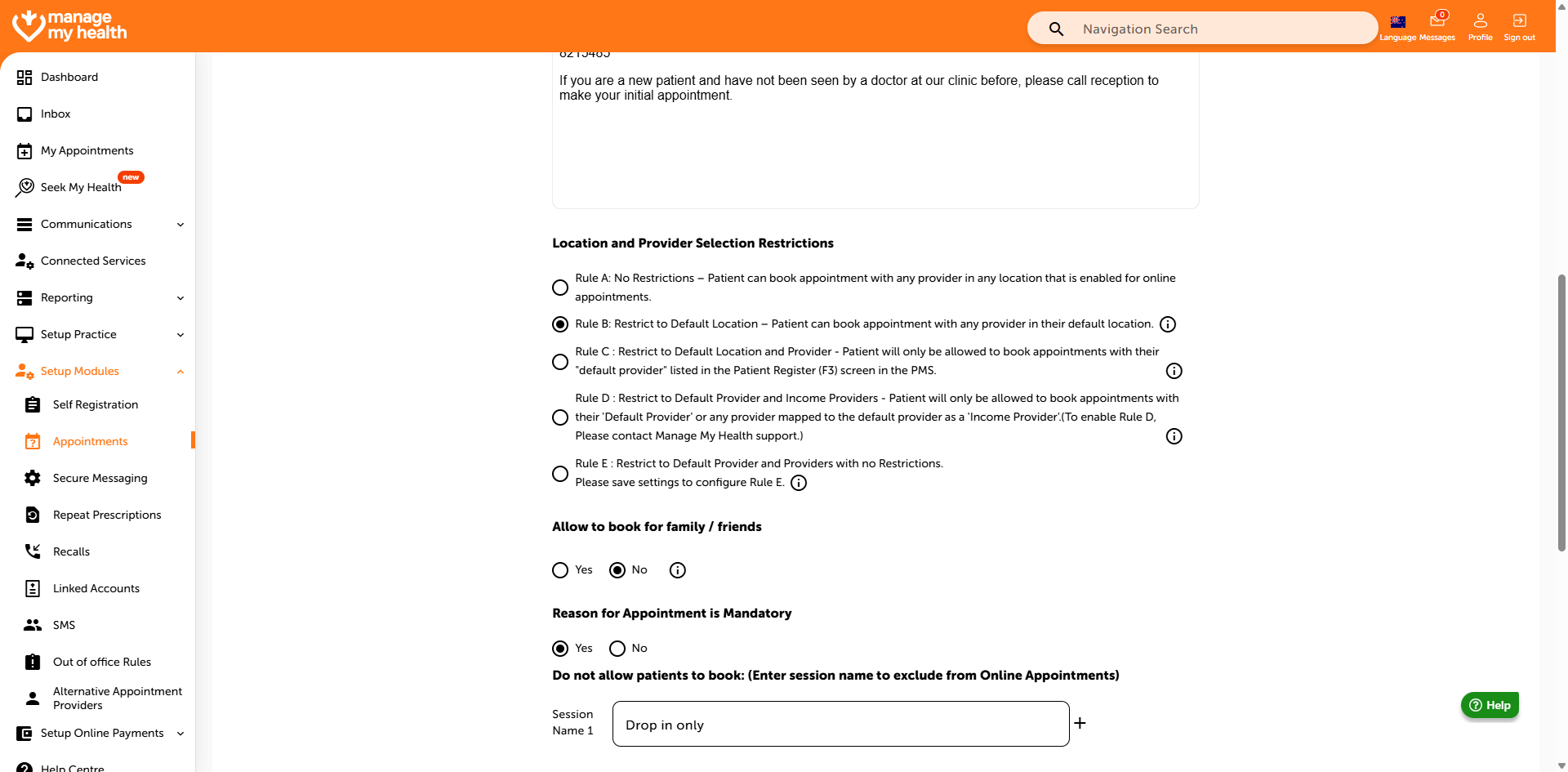
- Choose Rule B to allow patients to choose any provider at their default location.” And use the info icon for details if needed.
- Set “Yes” for both “Allow booking for family/friends” and “Require reason for appointment” to enhance booking details.
- Configure payment options:
- In-person: Select “Pay at Health Centre” or “Pay Online Only”
- Phone/Video: Select “Pay Online Only” for prepayment
- To manage exclusions and additional options:
- Enter session names (e.g., Drop In) to exclude from online booking
- Enable pre-screening questionnaires by checking the box next to a location
- Set Minimum Notice for Cancellation using the dropdown
- Enable Additional Assistance and Accident or Injury options by selecting “Yes”
- Click “Save” to confirm and apply your changes. Your appointment settings are now updated successfully