Description:
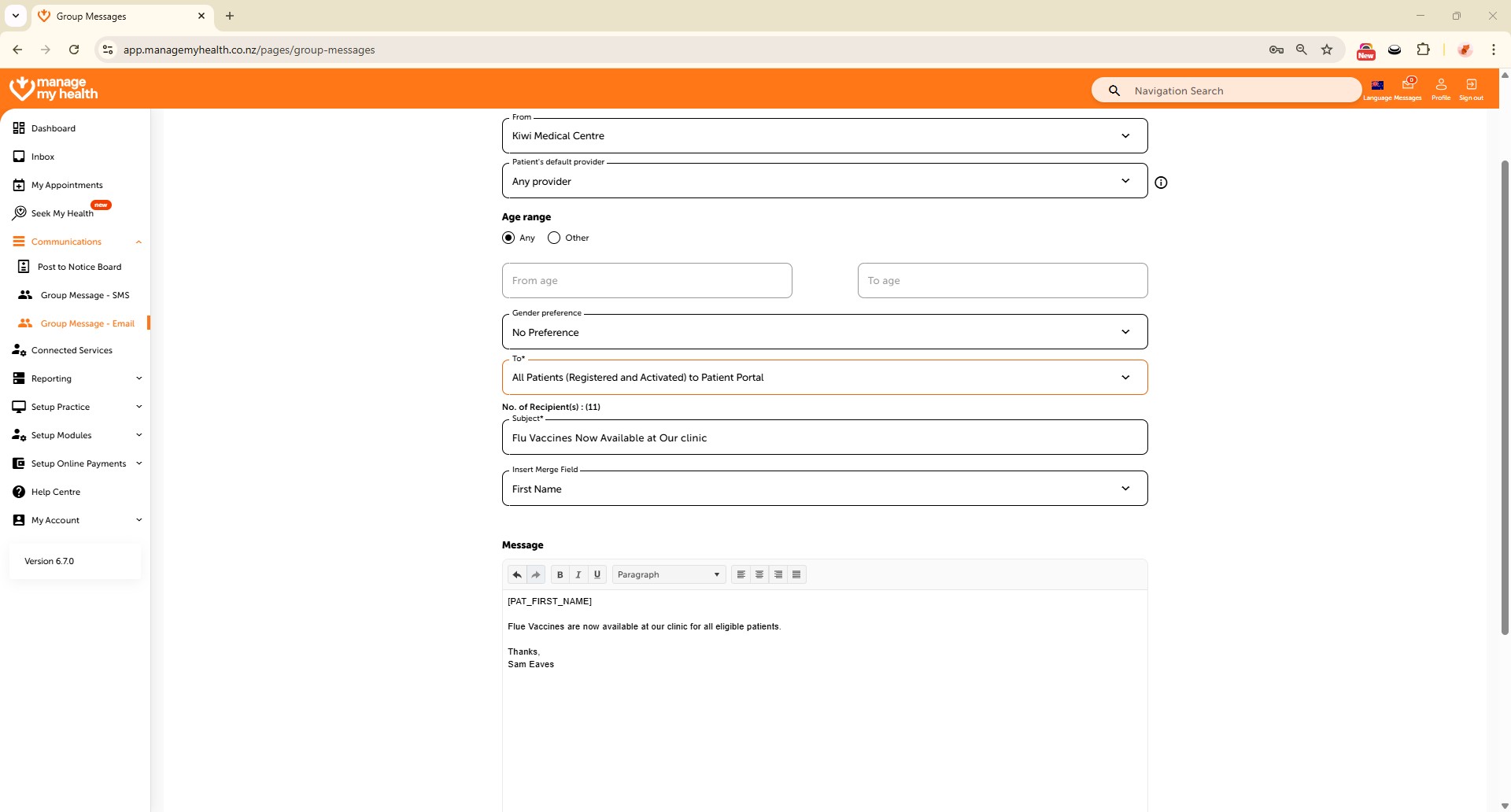
This help guide explains how to send group email messages to patients in ManageMyHealth. It’s useful when you want to share updates, reminders, or resources with multiple recipients at once. You’ll learn how to filter patients by provider, age, or gender, select recipients, and compose your message. By following these steps, you can also attach files, send the email, and confirm delivery with the displayed recipient count.
Video Demo:
Steps:
- Navigate to the “Communications” section from the sidebar and select “Group Message – Email.”
- Use the “Patient’s default provider” dropdown to filter recipients by provider, or choose “Any provider” to include all.
- Set Age Range to “Any” or use “Other” to define a custom range, and select “No Preference” under Gender to reach all patients.
- Choose recipients from the “Recipient” dropdown.
- Enter a subject line and compose your message in the content area.
- Click “Attach Files” to include any necessary documents or resources.
- Click “SEND MESSAGE” to deliver the email to selected patients.
- A confirmation will display the total number of recipients once the message is sent successfully.