Description:
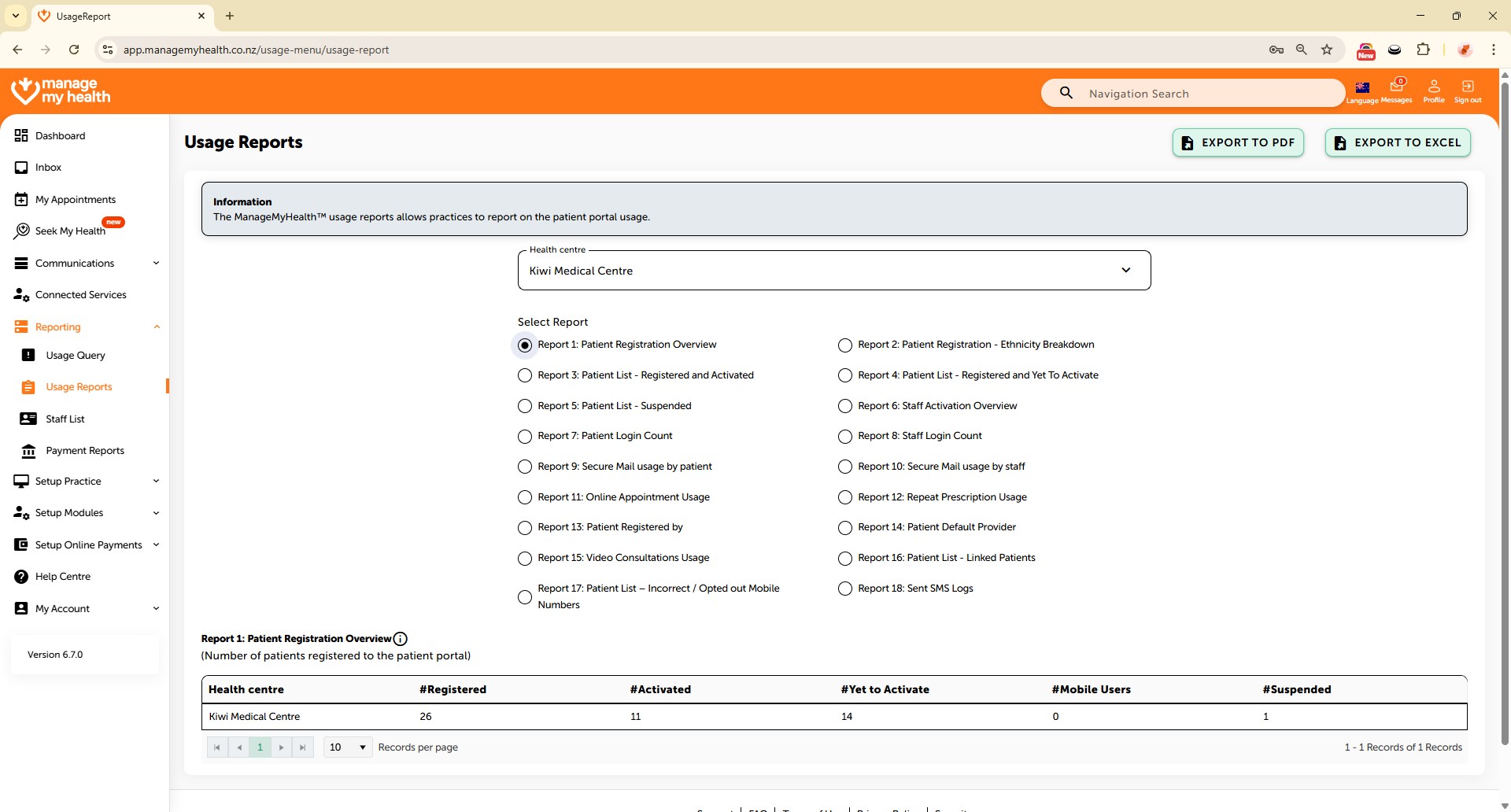
This help guide explains how to generate and review patient portal usage reports in ManageMyHealth. It’s useful when you want to track new registrations, identify patients yet to activate their accounts, or analyse portal activity. You’ll learn how to access different report types, review account connections, and sort data such as age distribution. By following these steps, you can export reports to PDF or Excel and assess patient activity based on your practice needs.
Video Demo:
Steps:
- Go to the “Reporting” section from the left-hand menu and select “Usage Reports.”
- Choose “Patient Registration Overview” report to view trends in new patient sign-ups.
- Select “Registered and Yet to Activate” report to list patients who haven’t activated their accounts. You can export this list to PDF or Excel from the top right.
- Click “Linked Patients” to review account connections and sort by Age to analyse age distribution.
- Use the available reports to assess patient portal activity based on your practice needs.