How to Set Up Out-of-Office and Automatic Email Replies
97 views 2 October 16, 2025
Description:
This help guide explains how to set up out-of-office and automatic replies in the PMS. It’s useful when providers are unavailable and want patients or colleagues to receive timely notifications. You’ll learn how to enable the out-of-office function, set start and end dates, write an out-of-office message, and activate automatic replies for incoming emails. By following these steps, you can ensure patients and staff receive clear communication even when you are away.
Video Demo:
Steps:
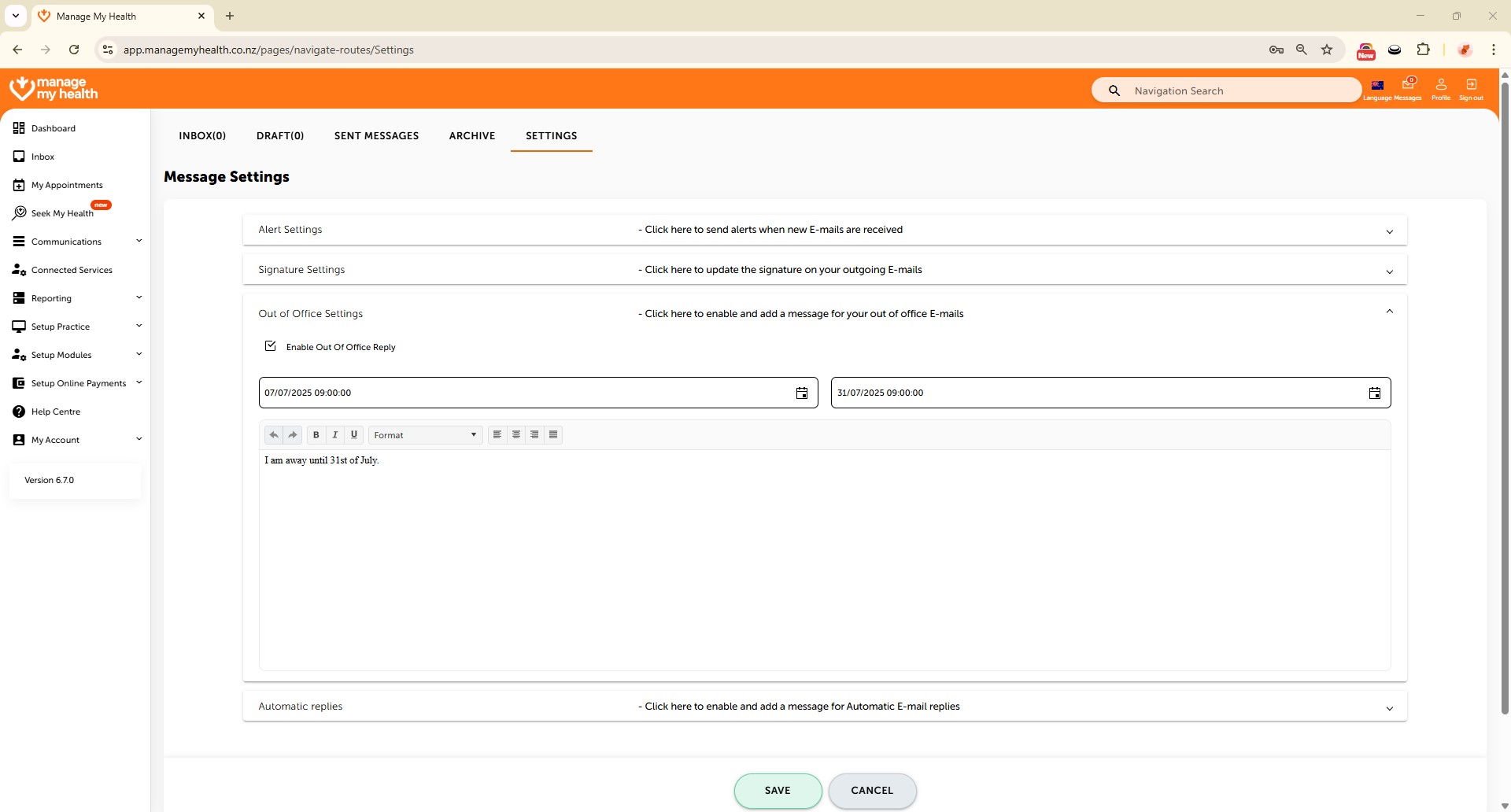
- Open the Inbox and click on the Settings tab.
- Go to Out of Office under Message Settings and enable the feature by checking the box.
- Set the start and end dates for your out-of-office period.
- Enter your out-of-office message in the message editor.
- Click Save to apply the out-of-office settings.
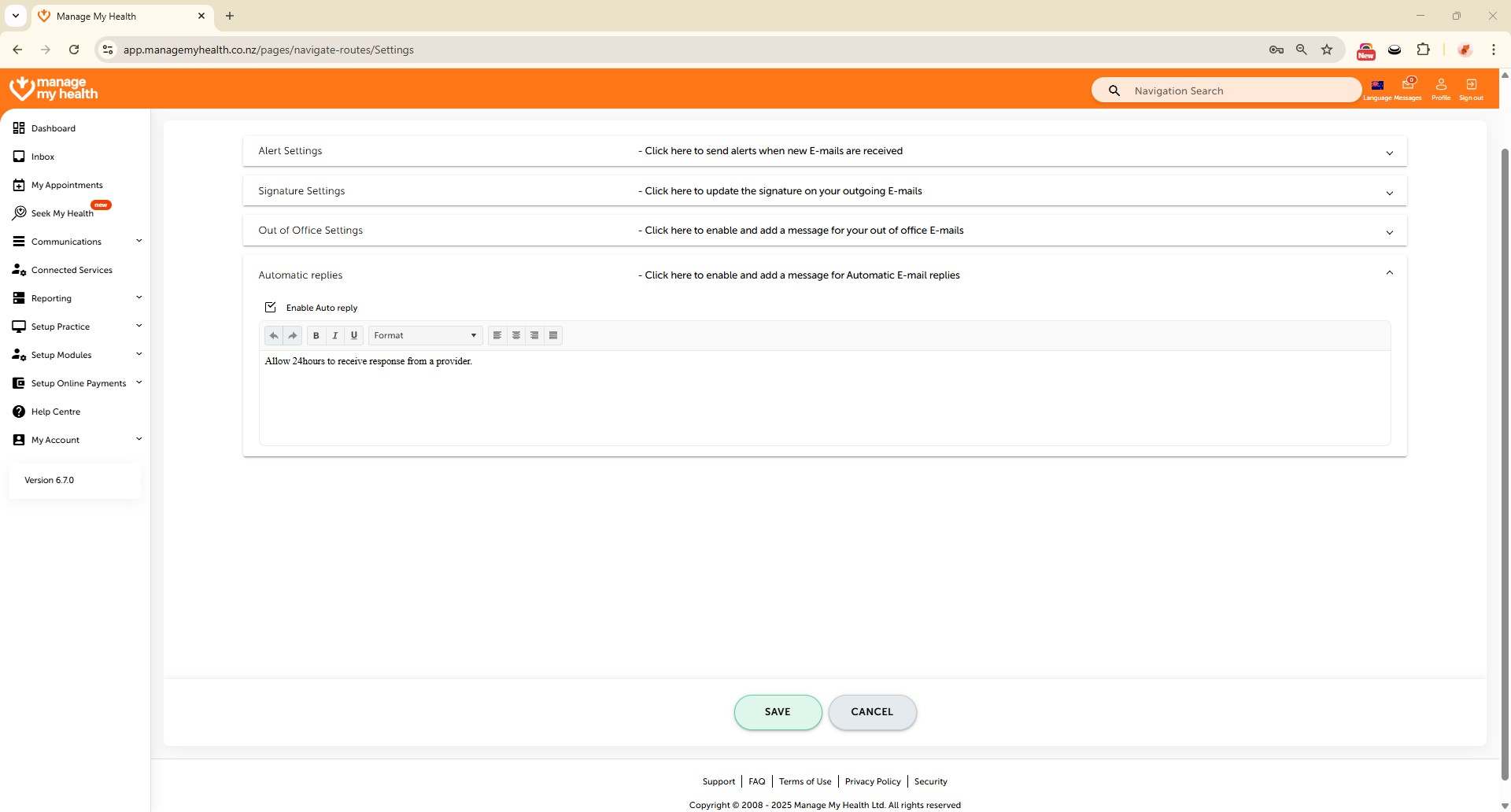
- Switch to the Automatic Replies section and check Enable Auto Reply.
- Enter the auto-reply message to be sent when emails are received.
- Click Save to apply all changes.