Video Demo:
Steps:
- From the sidebar, select Setup Modules.
- In the navigation menu, click on Appointments.
- Use the arrow icon to expand additional appointment settings.
- Click on the Video Consultation Settings tab.
- Scroll down and click Edit to make changes.
- Enable video consultations to offer patients the option of virtual appointments.
- Set “Yes” to enable flexible appointment slots for video consultations.
- Define how many minutes before the appointment a patient can join the video call by selecting from the dropdown menu.
- Set the Timeout duration — how long a patient should wait if the appointment is delayed.
- Set the Grace Period — how long a provider will wait if the patient is late.
- Choose the Appointment Time Interval to display to patients.
- Provide an explanation of what a video consultation is, when it’s appropriate, and when it’s not suitable. This can be customized in individual sections.
- Enter your Terms and Conditions for video consultations.
- Click SAVE to apply and update the settings visible to patients.
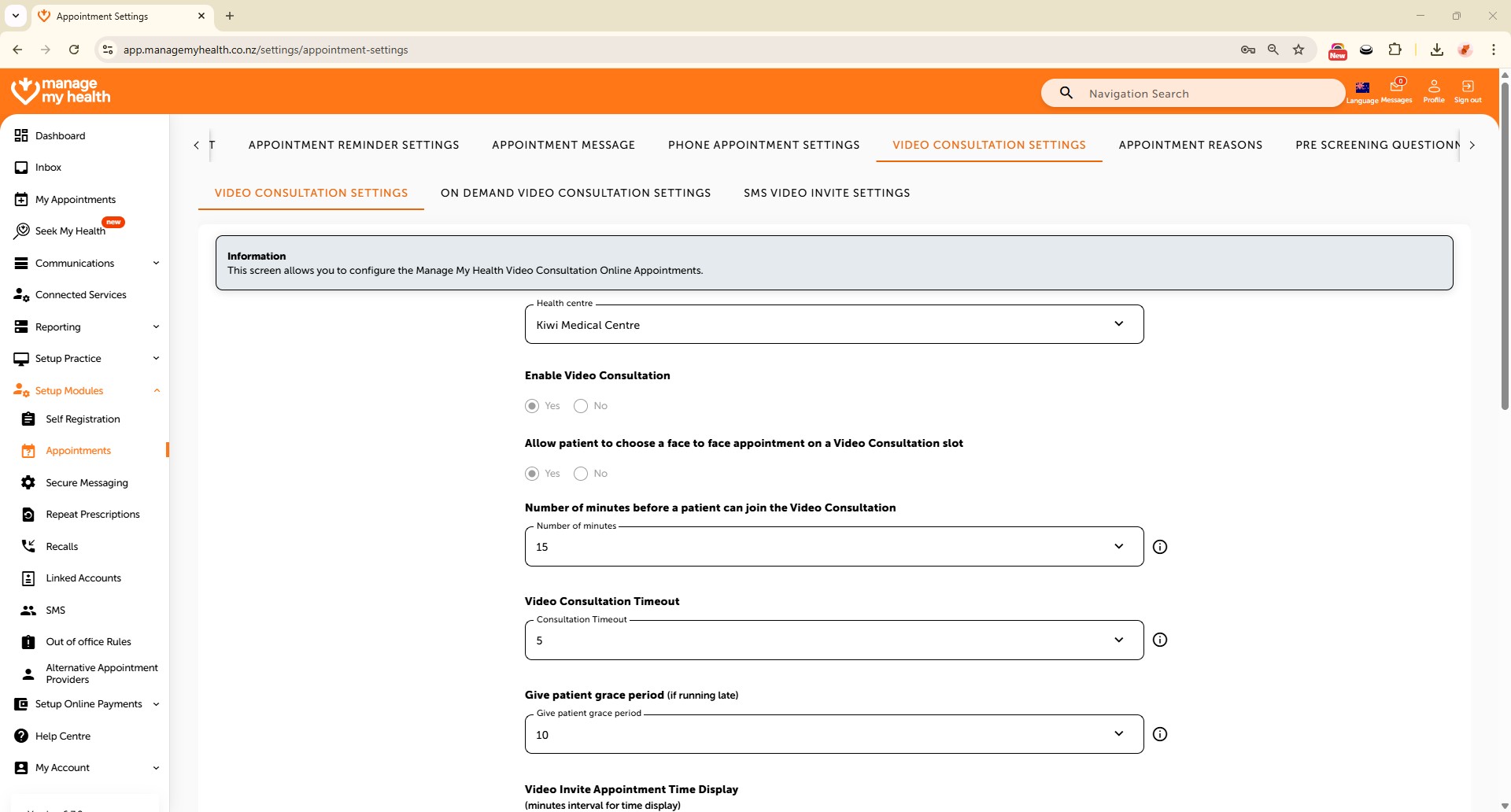
Video Consultation settings
Description:
This help guide explains how to configure video consultation settings for patients in ManageMyHealth. It’s useful when you want to offer virtual appointments with clear rules and expectations. You’ll learn how to enable video consultations, set appointment flexibility, define timeouts and grace periods, and add explanations and terms for patients. By following these steps, you can ensure video consultations run smoothly and patients understand how to use the service.
Steps:
- From the sidebar, select Setup Modules.
- In the navigation menu, click on Appointments.
- Use the arrow icon to expand additional appointment settings.
- Click on the Video Consultation Settings tab.
- Then select the On-Demand Video Consultation Settings tab to configure the feature.
- On-demand consultations allow doctors to instantly send a video consultation invite via email to patients—no prior appointment is needed.
- Click “Yes” to enable on-demand video consultations.
- Customize the message template content to tailor the communication sent to patients for on-demand video consultation invites.
- Click Save to confirm and apply the changes.
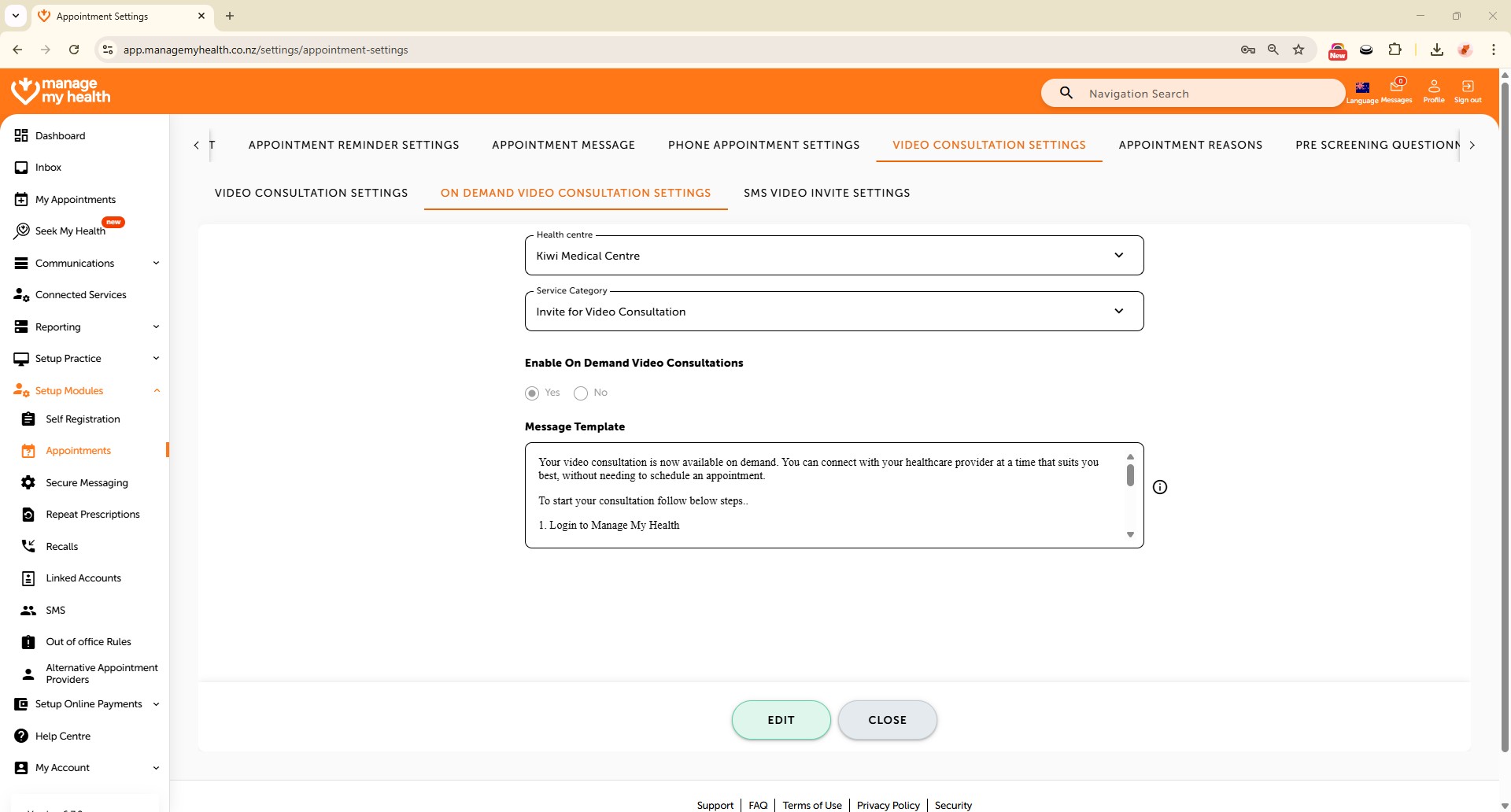
OnDemand video settings
Description:
This help guide explains how to enable and configure on-demand video consultations in ManageMyHealth. It’s useful when you want providers to instantly invite patients to a video call without requiring a prior appointment. You’ll learn how to activate the feature and customise the message template for patient invitations. By following these steps, you can offer flexible on-demand virtual care when needed.
Steps:
- From the sidebar, select Setup Modules.
- In the navigation menu, click on Appointments.
- Use the arrow icon to expand additional appointment settings.
- Click on the Video Consultation Settings tab.
- Click on the SMS Video Invite Settings tab to configure SMS invitation options.
- Click the Edit button to modify SMS settings for your selected health centre.
- Enable the SMS Video Invite feature by selecting “Yes.”
- Review the Terms and Conditions to understand the responsibilities and requirements when using SMS Video Invites.
- Click Save to apply for the changes.
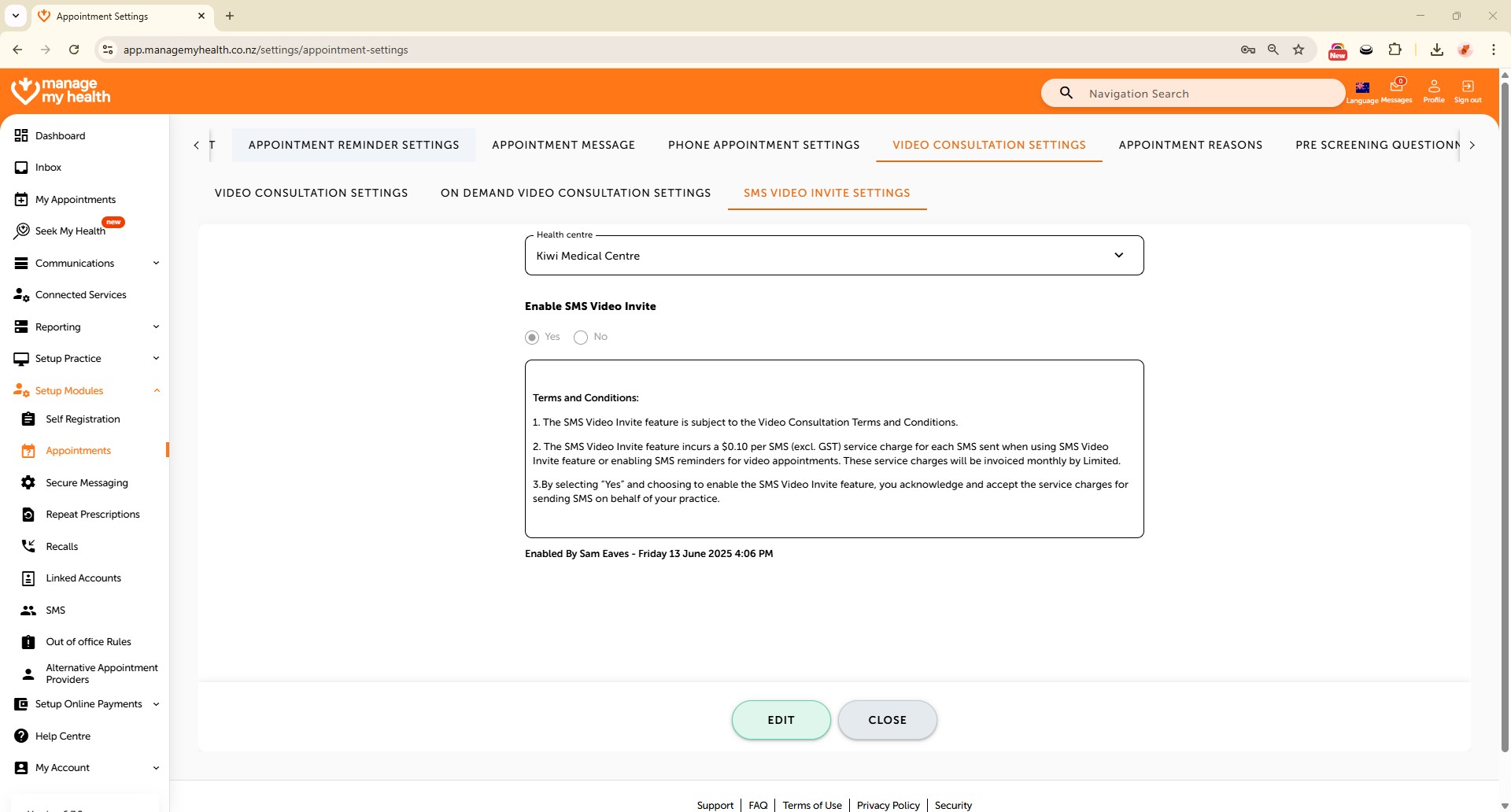
SMS Video Settings
Description:
This help guide explains how to set up SMS video invitation options for patients in ManageMyHealth. It’s useful when you want to let providers send video consultation links via SMS. You’ll learn how to enable the SMS invite feature, review related terms and conditions, and apply the changes for your health centre. By following these steps, you can make video consultations more accessible for patients through SMS delivery.