Description:
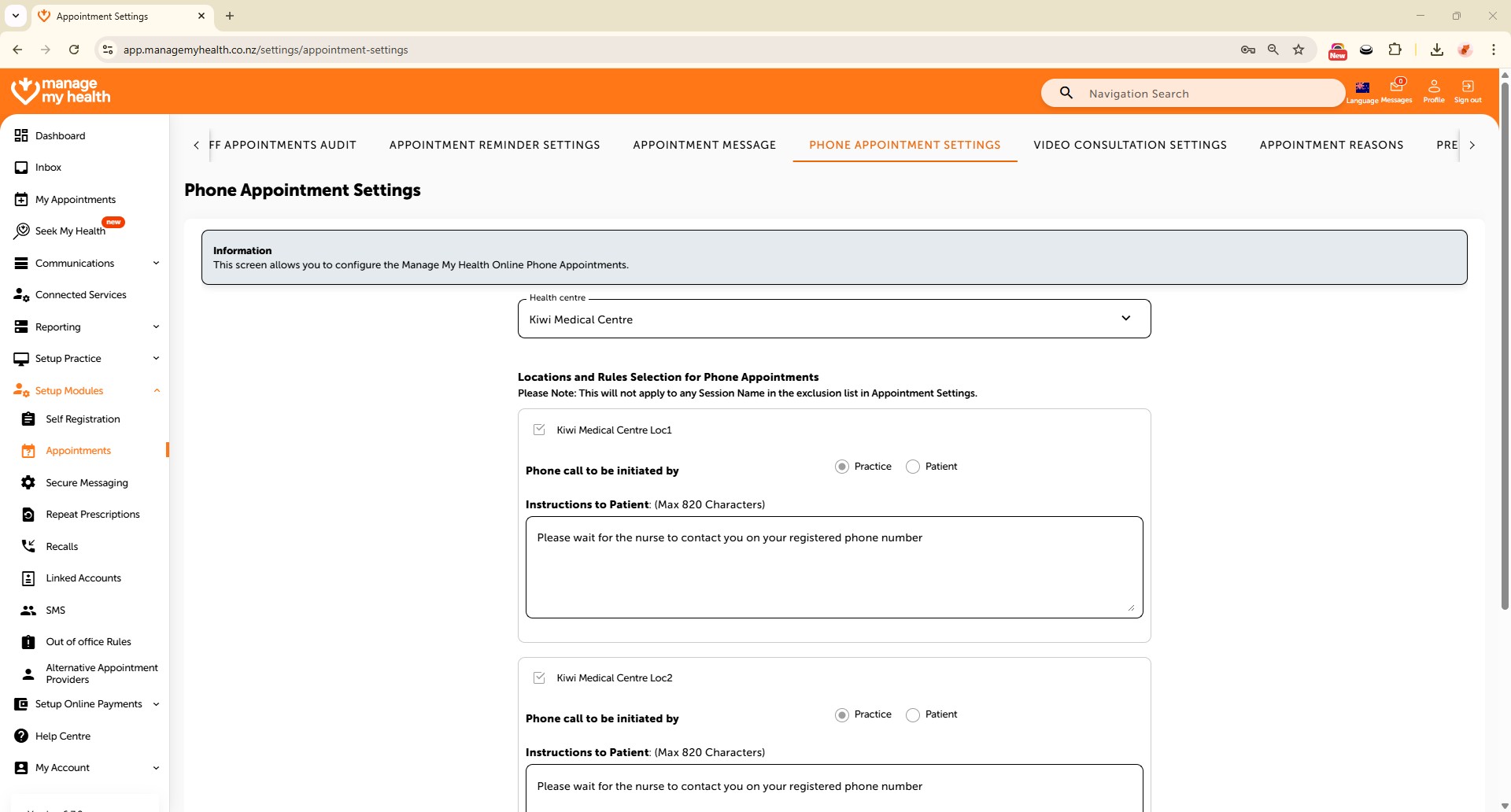
This help guide explains how to configure phone appointment settings in ManageMyHealth. It’s useful when you want to enable phone appointments at specific medical centres. You’ll learn how to access the Phone Appointment Settings tab, select the appropriate location, and set your practice as the party responsible for initiating calls. By following these steps, you can ensure patients have the option to book and attend phone-based consultations.
Video Demo:
Steps:
- From the sidebar, go to Setup Modules.
- In the navigation menu, select Appointments.
- Click the arrow icon to expand additional settings.
- Select the “Phone Appointment Settings” tab.
- Choose the appropriate location to enable phone appointments for that specific medical centre.
- Set your practice as the party responsible for initiating phone calls.
- Click “SAVE” to apply for your change.