Description:
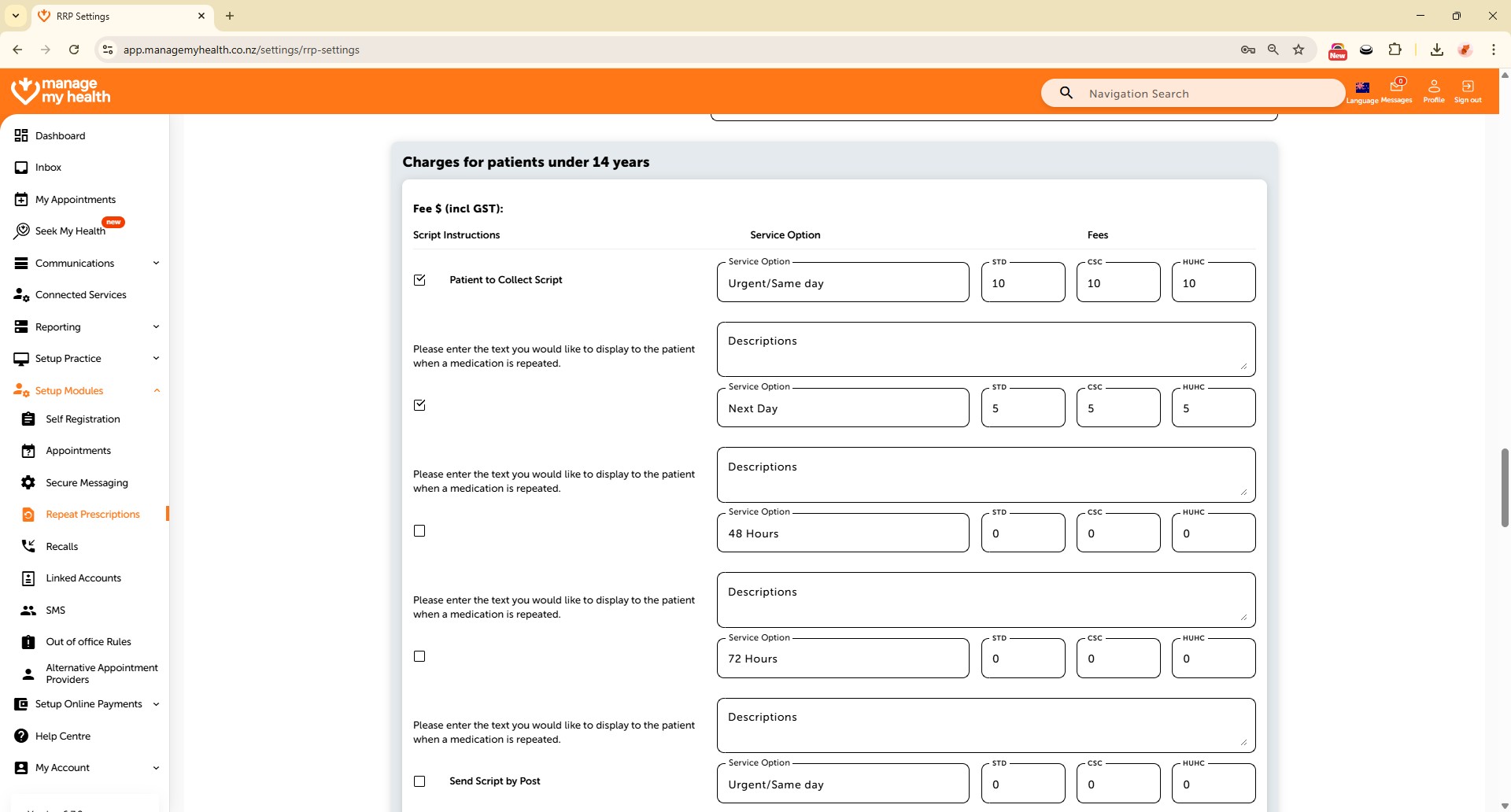
This help guide explains how to configure repeat prescription settings for patients under 14. It’s useful when you want to apply charges and manage script instructions for younger patients. You’ll learn how to set fees, enable collection options, and add details for patient notifications. By following these steps, you can also allow prescriptions to be sent directly to pharmacies.
Video Demo:
Steps:
- Go to “Setup Modules” and select “Repeat Prescriptions”.
- Scroll down and click “Edit”.
- Enable charges for patients under 14 by selecting “Yes”.
- Under Script Instructions, enable “Patient to Collect Script”.
- Enter urgent/same-day prescription fees for Standard, Community Services Card, and High Use Health Card.
- Add a description for the patient’s email notification when the script is processed.
- Enable the option to send prescriptions directly to the pharmacy.
- Click “SAVE” to apply changes and confirm the “Changes saved successfully” message.