Description:
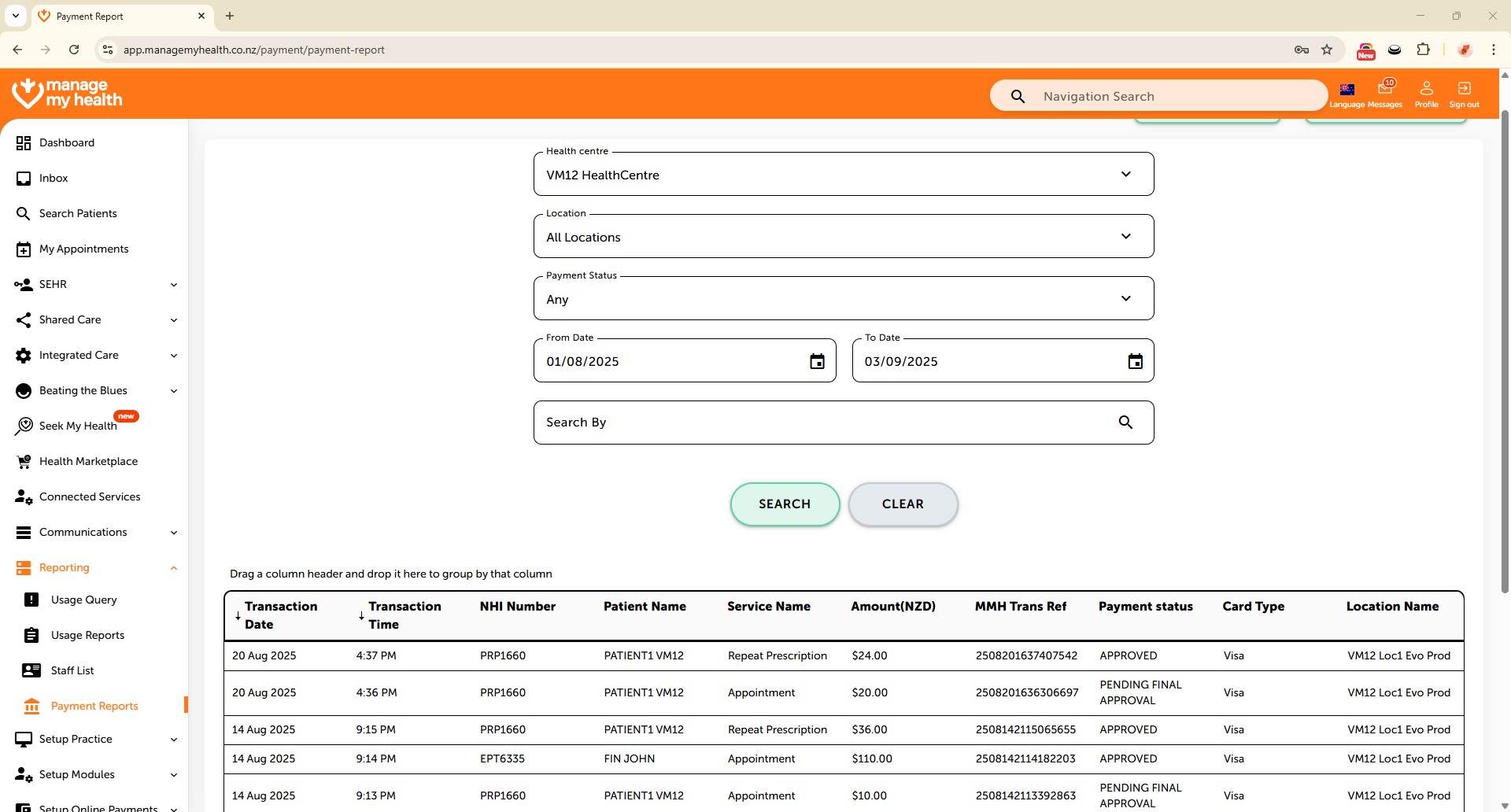
This help guide explains how to create and view payment reports in ManageMyHealth. It’s useful when you want to track payments by health centre, location, or status within a specific timeframe. You’ll learn how to apply filters, set reporting dates, and generate detailed results. By following these steps, you can export customised payment reports to PDF or Excel for saving or sharing.
Video Demo:
Steps:
- Navigate to the sidebar and select “Reporting”, then choose “Payment Reports.”
- Use the dropdown menus to apply filters: select the Health Centre, specify the Location, and choose the Payment Status to narrow down the report data.
- Define the reporting period by selecting the From and To dates.
- Click “SEARCH” to generate the customised payment report.
- Review the detailed report displayed in the grid.
- To save or share the report, click “Export to PDF” or “Export to Excel.”