Description:
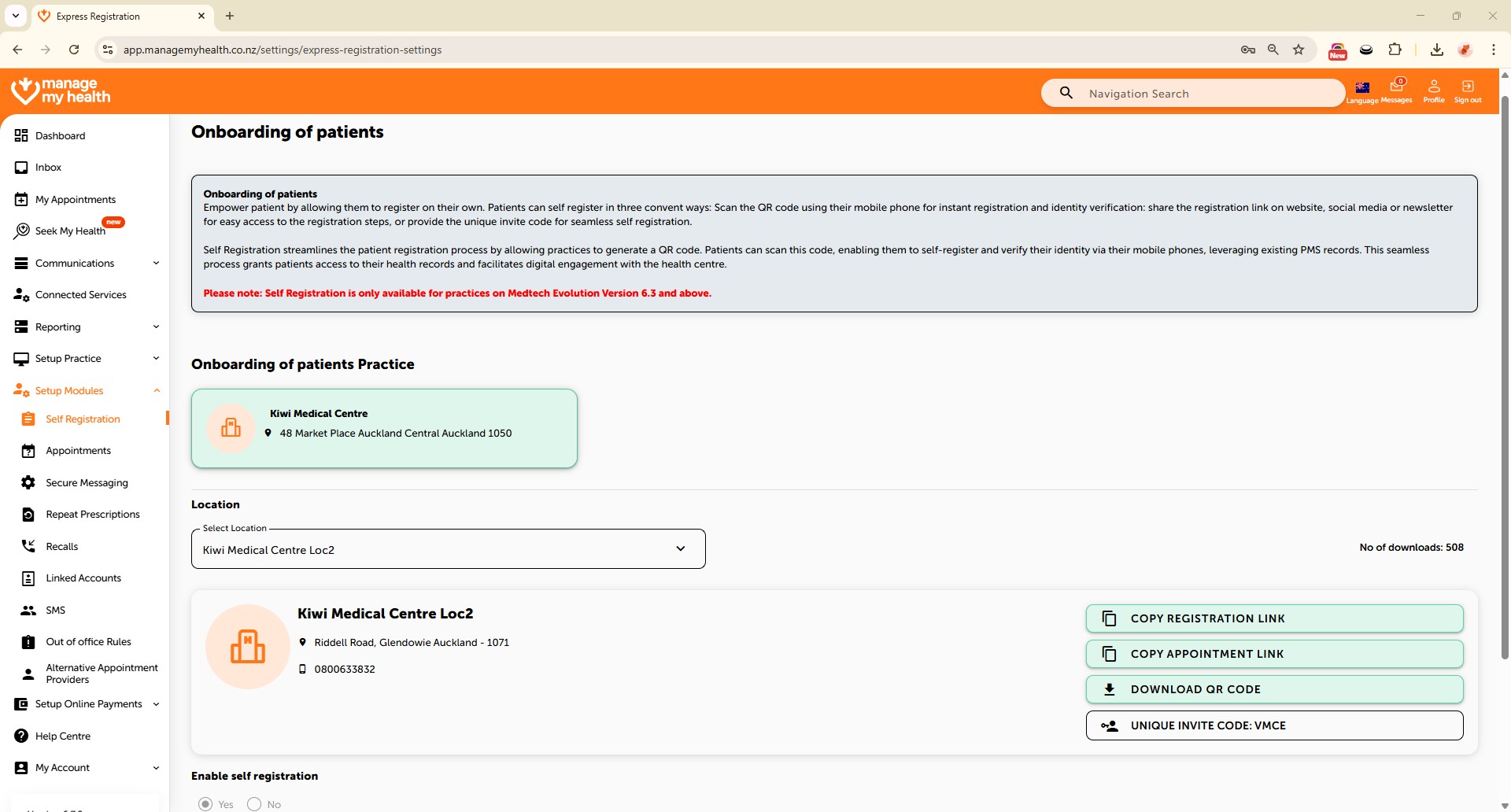
This help guide explains how to turn patient self-registration on or off for a specific location in ManageMyHealth. It’s useful when you want to control whether patients can register themselves and promote sign-ups at reception. You’ll learn how to select a location, enable or disable self-registration, save changes, and download a QR code for easy patient sign-up. By following these steps, you can manage self-registration settings confidently and encourage uptake where appropriate.
Video Demo:
Steps:
- Go to Setup Modules from the sidebar.
- Select Self Registration.
- Click EDIT to update the settings.
- Choose the relevant location from the dropdown.
- To enable self-registration, select Yes under Enable self registration.
- To disable it, select No.
- Click SAVE to apply changes.
- To promote sign-up, click Download QR Code and display it at the reception for patients to scan and register with ManageMyHealth.