How to action Repeat script in PMS
116 views 0 August 29, 2025
Description:
This help guide explains how to manage and action repeat prescription requests in the PMS via the Provider Inbox. It’s useful when providers need to review, approve, reject, or forward patient prescription requests. You’ll learn how to identify urgent requests (red) versus standard ones (black), review details such as pharmacy preference, pickup method, urgency, and fees, and add notes for rejected items. By following these steps, you can approve all items at once, send confirmation emails to patients, or forward requests to another provider with clear notes.
Video Demo:
Steps:
- Log in to the PMS and navigate to the Provider Inbox.
- Go to the ManageMyHealth tab.
- Identify requests — urgent requests appear in red, non-urgent in black.
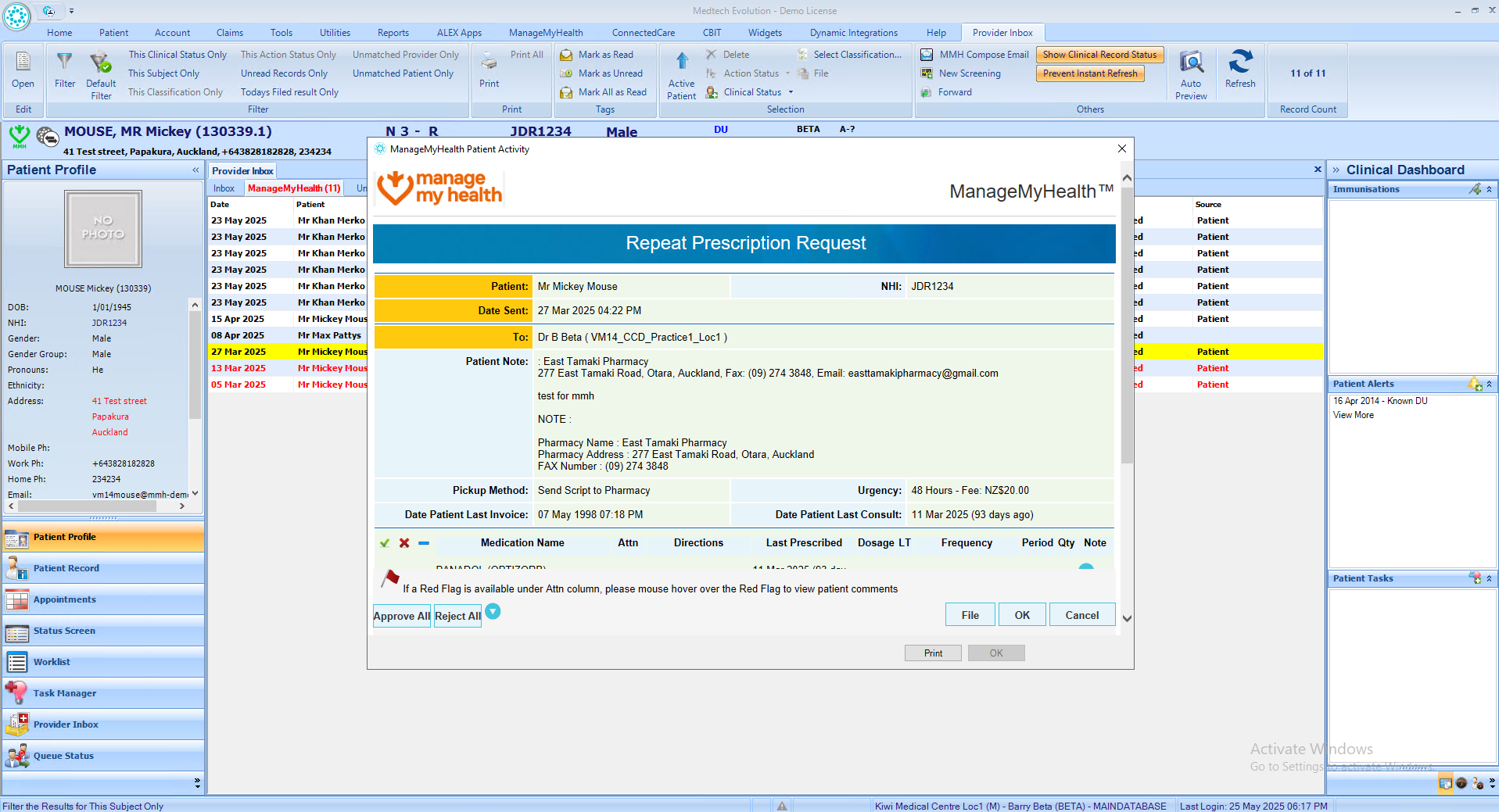
- Double-click on a “Request Repeat Prescription” to open it.
- Review details: preferred pharmacy, reason, pickup method, urgency, any fee, and patient comments (flagged).
- If any medication is rejected, enter a note for the patient explaining why.
7. To approve all, click “Approve All” and file the request, a confirmation email will be sent to the patient.
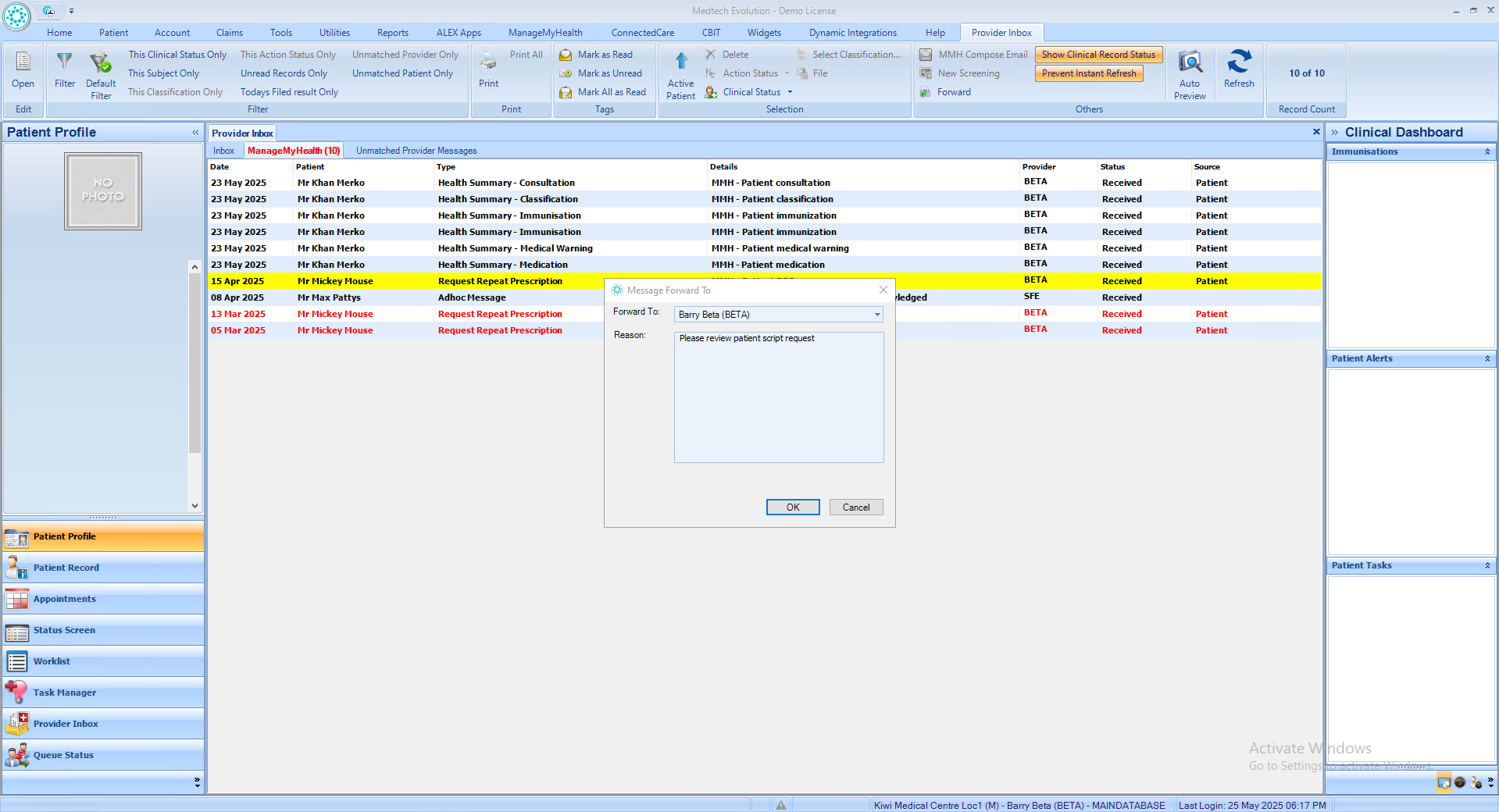
8. To forward a request to another staff member, click “Forward”, select the provider, enter the reason, and click “OK”.
9. Use Filter to view messages forwarded to a specific provider and open the request to see forwarding details.