Description:
This help guide explains how to generate usage reports filtered by provider in ManageMyHealth. It’s useful when you want insights into patient activity and services delivered at a specific location within a defined timeframe. You’ll learn how to apply filters such as provider and service type, view detailed results, and review patient information. By following these steps, you can also export the customised usage report to Excel for further analysis or sharing.
Video Demo:
Steps:
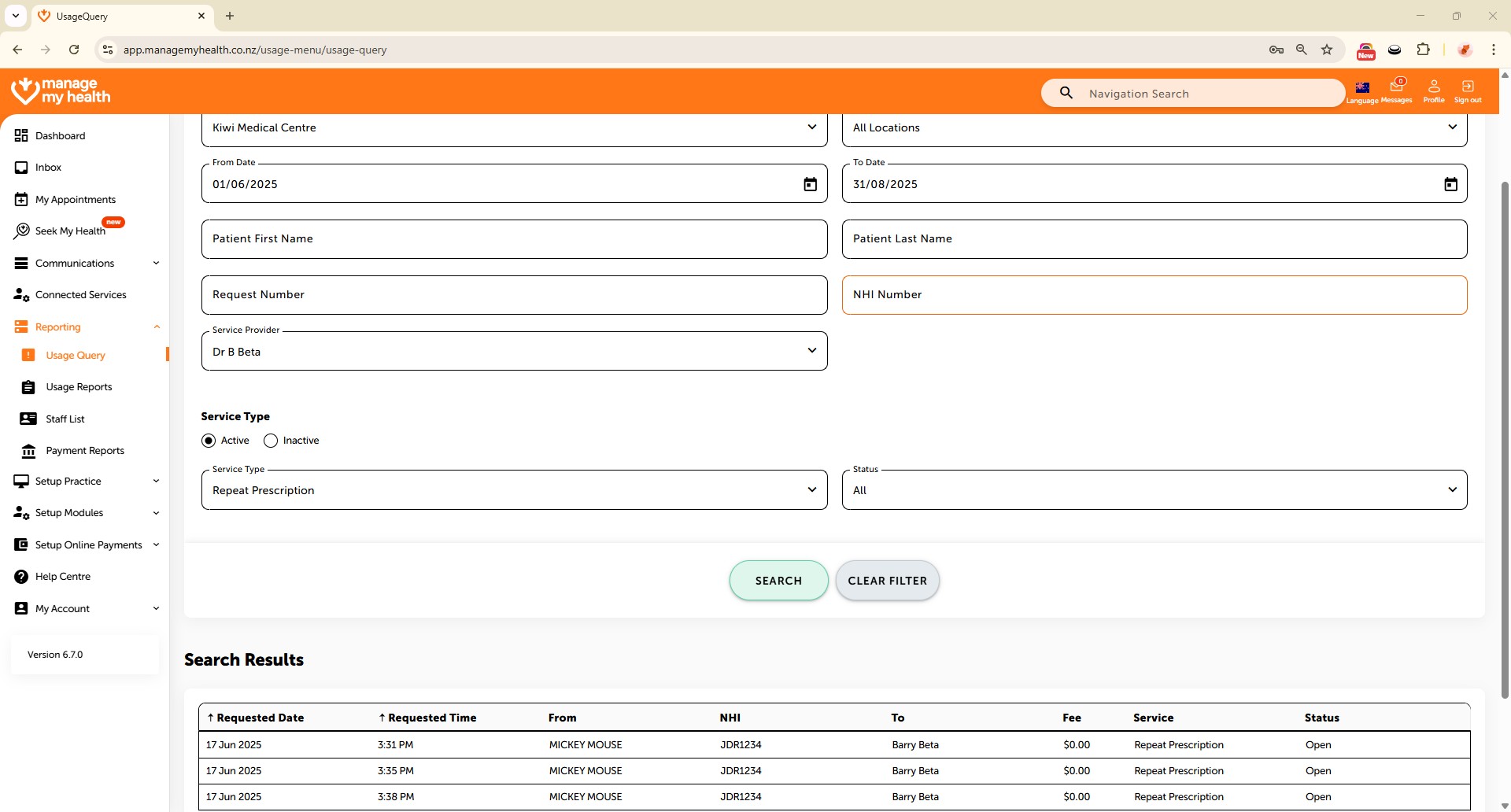
- Begin by selecting the Reporting section from the sidebar menu.
- Choose Usage Query to start filtering and generating usage reports.
- Select your Location to focus the report on a specific location.
- Set the From and To dates to define the reporting period.
- Filter results by selecting a specific Provider for targeted insights.
- Use the Service Type dropdown to further narrow down the results.
- Click SEARCH to generate your customised usage report.
- The results grid will display filtered data along with patient details.
- Export the filtered results to an Excel file if needed.