Description:
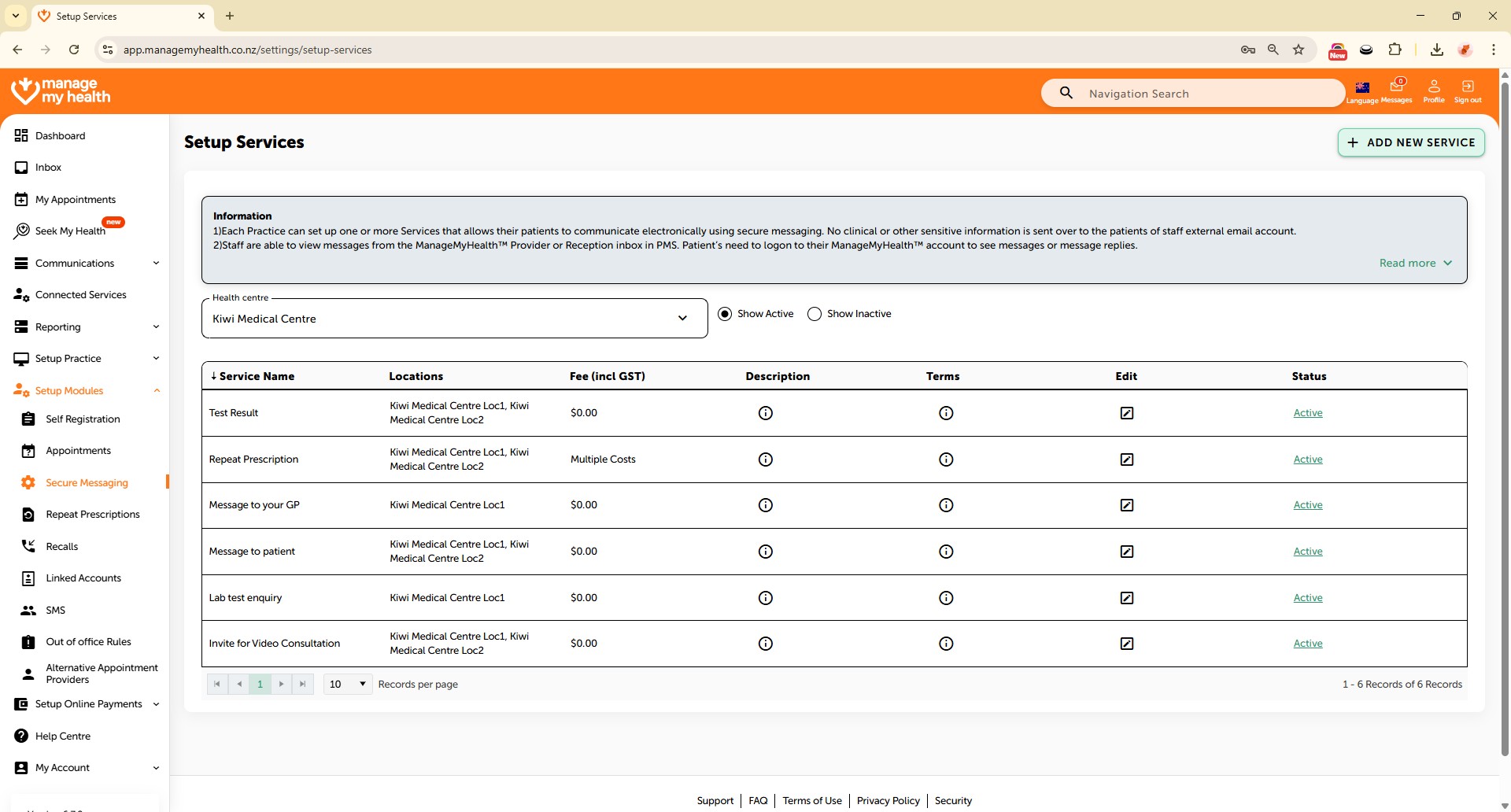
This help guide explains how to activate or deactivate secure messaging services in ManageMyHealth. It’s useful when you need to enable or disable specific message types, such as patient replies or test results. You’ll learn how to switch services between active and inactive status, and confirm changes through the save function. By following these steps, you can manage which secure messaging options are available for patients and staff.
Video Demo:
Steps:
- Navigate to Setup Modules.
- From the sidebar, select Secure Messaging to access secure communication settings.
- Locate the message type you want to deactivate and click the Active status link next to it.
- Click the Inactive button to disable the selected secure messaging service.
- Click SAVE to confirm and apply for the changes.
- The “Patient to reply,” service is now inactive and will appear under the ‘Show Inactive’ list.
- To reactivate a service, select the Show Inactive option to display all currently deactivated services.
- Click the Inactive status next to the service you wish to reactivate.
- Click the Active button.
- Click SAVE to confirm and reactivate the secure messaging service.
- The “Test Result” service is now active and appears under the ‘Show Active’ list.