Description:
This help guide explains how to activate SMS services and add SMS credits in ManageMyHealth. It’s useful when you want to enable patient messaging and keep track of SMS usage. You’ll learn how to activate SMS in the modules, top up credits using different payment methods, and set up auto top-ups with reminders. By following these steps, you can also view SMS history, filter usage, and export reports for monitoring.
Video Demo:
Steps:
- Go to Setup Modules → Select SMS → Click EDIT → Choose Secure Message – SMS from the dropdown → Select Yes → Click Save.
Steps:
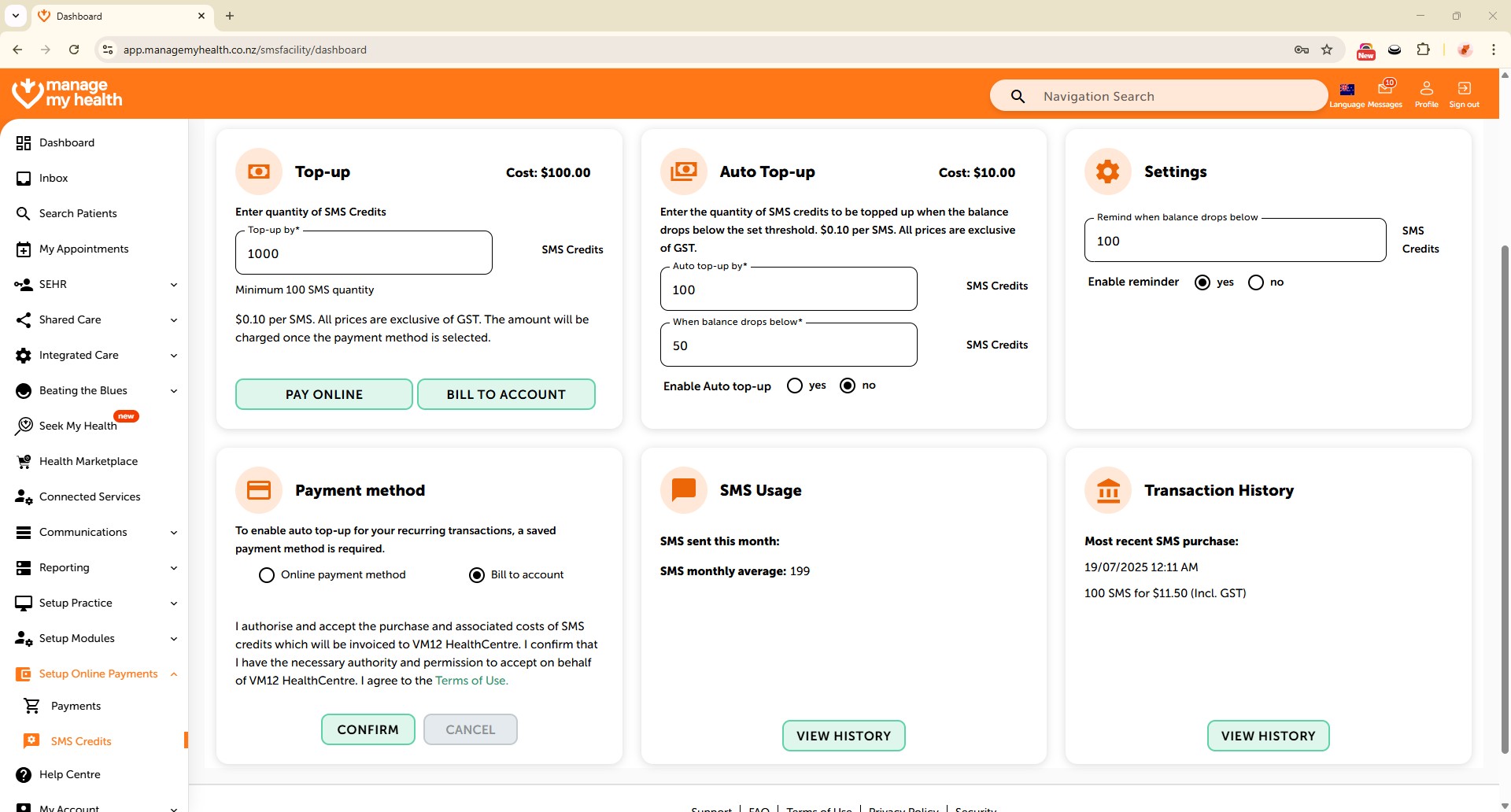
- Navigate to Setup Online Payments → Open SMS Credits section → Note: Each SMS is charged at $0.10 + GST.
- Click Top-Up to add SMS credits.
- Select Pay Online → Choose Credit Card → Click Add → Enter card details → Click Submit.
- Select Account2Account → Choose your bank → Accept terms and conditions → Proceed with payment.
- Select Bill to Account as the payment method → Click Confirm to complete the transaction.
- Select Auto top-up by → Specify credit threshold → Click Yes → Click Confirm in the pop-up.
- Click Yes to enable low balance reminder notifications.
- Click View History → Use dropdown to filter by daily, monthly, or yearly → Grid shows total SMS per month.
- Use search to filter history by date/payment method → Export data to PDF or Excel.